Shopify
Hikyaku Connect is the Shopify app for Hikyaku. When a customer pays for an order in your store, the app sends the order to your Hikyaku organisation, and Hikyaku makes a package for it. The package gets the customer's name, address and contact details.
The installation has three parts:
- Start the installation from Hikyaku.
- Install the app in your Shopify store.
- Connect the app to your Hikyaku account and map your store locations.
It takes about five minutes.
Before you start
You need:
- A Hikyaku account in a company organisation. The Connected Apps tab shows only for company organisations.
- At least one warehouse in that organisation. Refer to Warehouses.
- Permission to install apps in your Shopify store. The store owner has this permission.
- Your store's myshopify.com domain. The next step shows where to find it.
Step 1: Find your myshopify.com domain
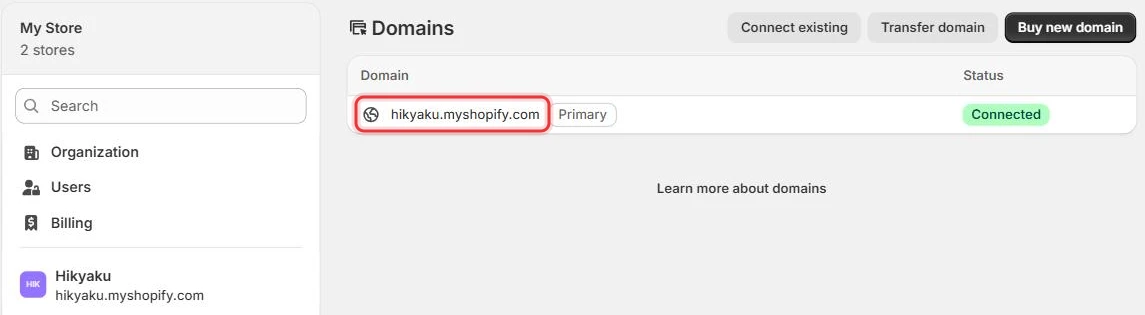
- In your Shopify admin, click Settings, then Domains.
- Copy the domain that ends in
.myshopify.com, for exampleyour-store.myshopify.com.
Use the myshopify.com domain, even if your store also has a custom domain such as www.your-store.com.
Step 2: Start from Hikyaku
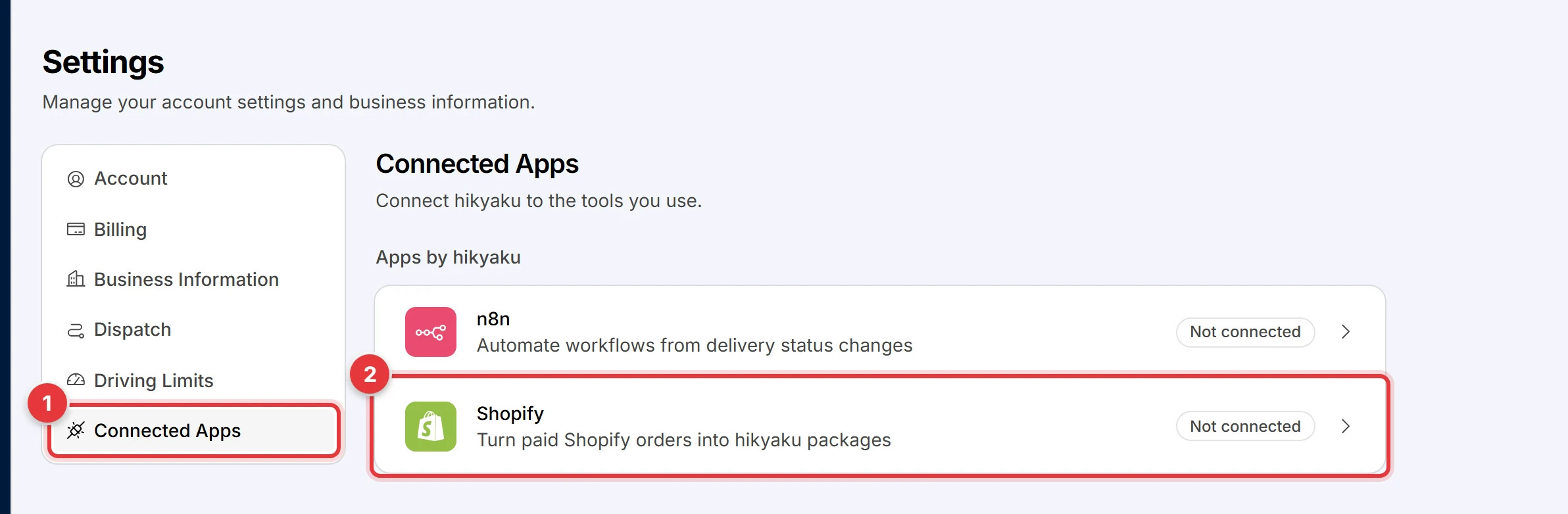
- In Hikyaku, click your name at the bottom of the sidebar, then click Settings. Refer to Settings.
- Click the Connected Apps tab (1).
- Click Shopify (2).
- In Shop domain (1), paste your myshopify.com domain.
- Click Connect Shopify (2).
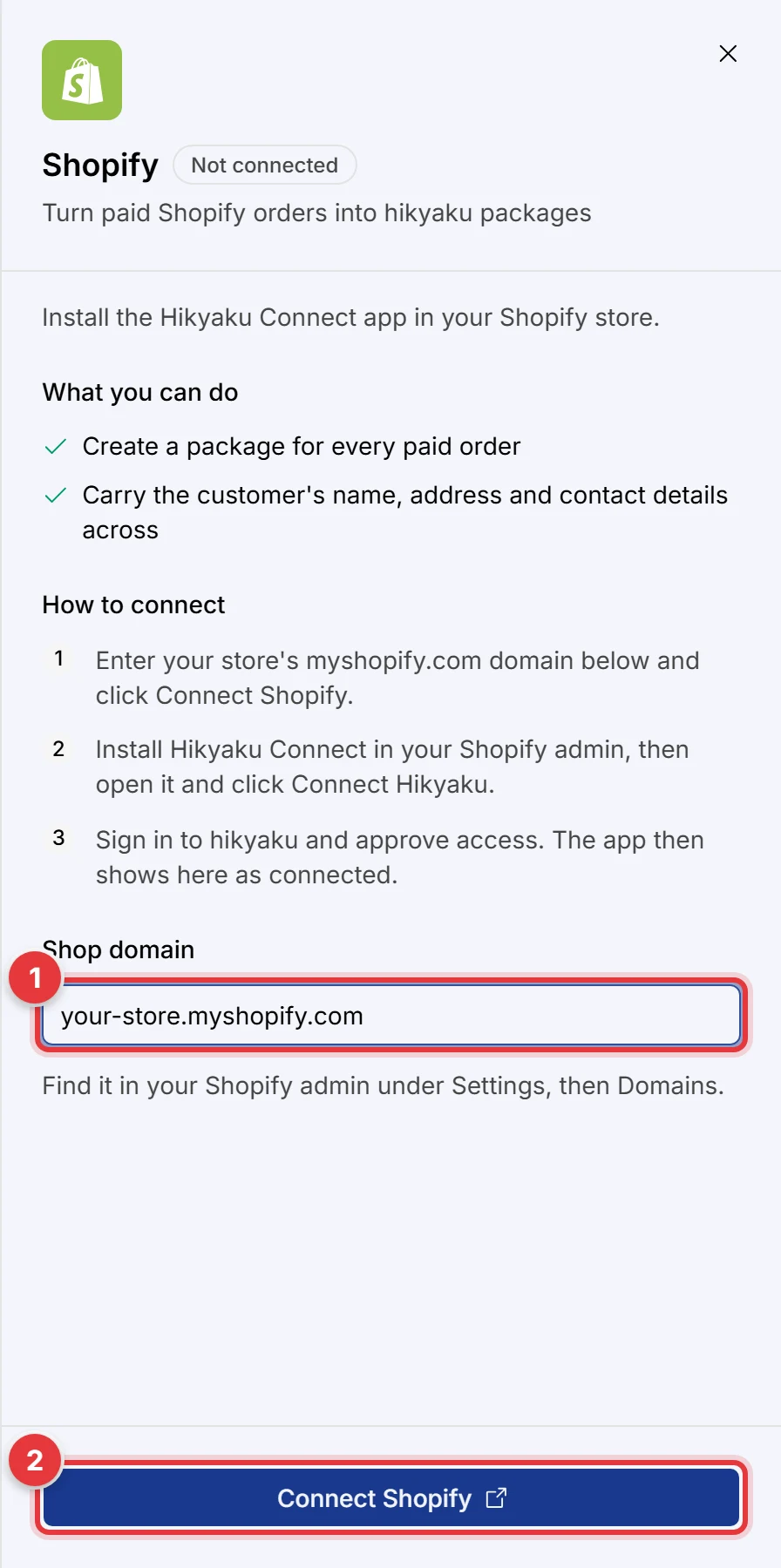
A new tab opens your Shopify admin. If Shopify asks you to sign in, sign in with the account for that store.
Step 3: Install the app in Shopify
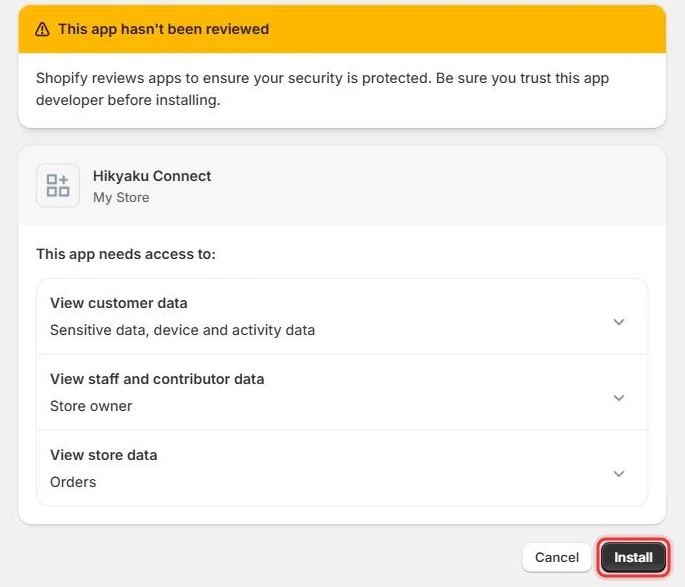
- Read the list of data the app needs:
- View customer data: the name, address, phone number and email on each order, so the driver knows where to deliver.
- View staff and contributor data: Shopify lists this as Store owner. Hikyaku Connect does not read it.
- View store data: your orders and store locations.
- Click Install.
Hikyaku Connect is not in the Shopify App Store yet, so Shopify shows This app hasn't been reviewed. This is expected. Check that the page says Hikyaku Connect before you click Install.
Shopify installs the app and opens it. You can open it again later from Apps → Hikyaku Connect in the Shopify admin sidebar.
Step 4: Connect your Hikyaku account

- Click Connect Hikyaku. A new tab opens.
- If Hikyaku asks you to sign in, sign in with your Hikyaku account.
- Hikyaku asks if Shopify can access your account. Click Allow.
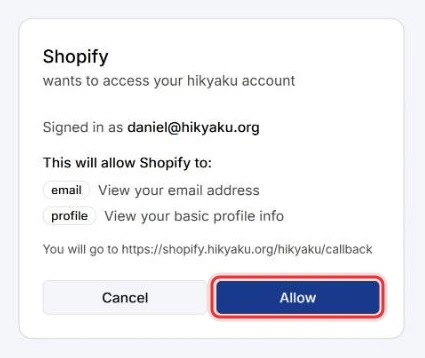
- The tab shows Connected to Hikyaku. Close the tab.
- Go back to the Shopify tab and refresh the page.
If no new tab opens when you click Connect Hikyaku, your browser blocked the pop-up. Allow pop-ups for admin.shopify.com, then click Connect Hikyaku again.
Step 5: Choose your organisation
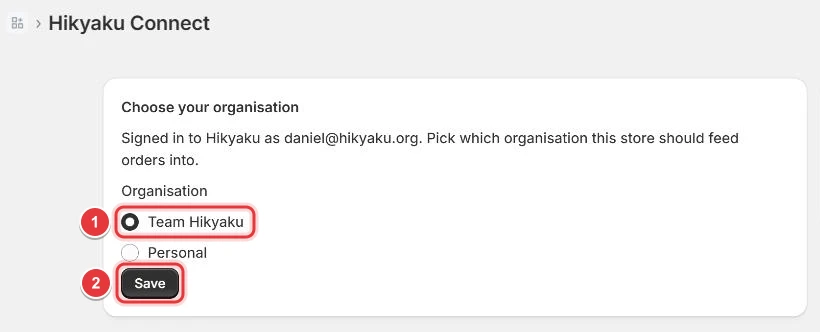
- Select the Hikyaku organisation that delivers this store's orders.
- Click Save.
The app opens the Locations page.
Step 6: Map your store locations
Each Shopify location that ships online orders needs a Hikyaku warehouse. Hikyaku sends the driver to that warehouse to pick up the items.
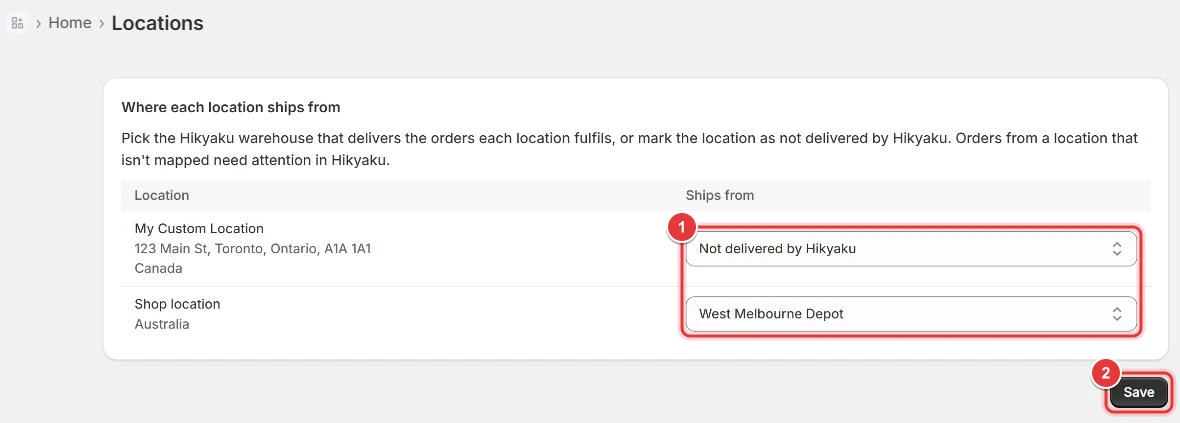
- In Ships from (1), select a warehouse for each location. Select Not delivered by Hikyaku for a location that Hikyaku does not deliver from, for example a location that uses a different courier.
- Click Save (2).
If a warehouse is 5 km or less from a location, the app selects it for you and marks it Suggested. Check the suggestion before you click Save. The app saves a suggestion only when you click Save.
Locations that are inactive, or that do not fulfil online orders, are under Other locations. You do not need to map them.
Step 7: Check the connection
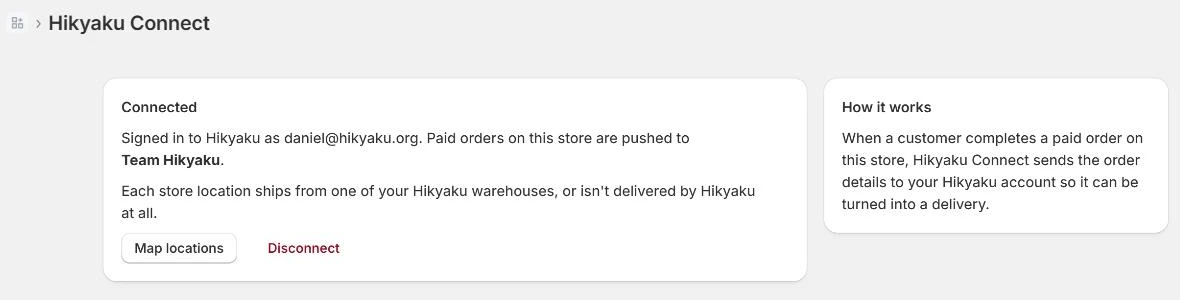
The app home shows Connected and the organisation that gets your orders. In Hikyaku, Settings → Connected Apps shows Shopify as Connected.
From now on, each paid order in your store becomes a package in Hikyaku. To test the connection, place a test order in your store and pay for it, then look for the package in Packages.
Change or remove the connection
- Change the location mapping: in the app, click Map locations, or click Locations under Hikyaku Connect in the Shopify sidebar.
- Add a new location: when you add a location in Shopify, the app shows Locations need mapping. Map the new location on the Locations page. Until you map it, orders shipped from it need attention in Hikyaku.
- Stop sending orders: in the app, click Disconnect. To connect again, click Connect Hikyaku.
- Revoke access from Hikyaku: in Hikyaku, go to Settings → Connected Apps → Shopify and click Revoke access. Then click Disconnect in the app too.
- Remove the app: in the Shopify admin, go to Settings → Apps, click the ⋯ button next to Hikyaku Connect, and click Uninstall.
Troubleshooting
| Problem | What to do |
|---|---|
| Enter a valid myshopify.com domain in Hikyaku | Enter the domain that ends in .myshopify.com, not your custom domain. Refer to Step 1. |
| Connected Apps is not in Settings | Your account is not in a company organisation. Ask the owner of your organisation to add you. |
| No organisations found on your Hikyaku account yet | Create an organisation in Hikyaku, then refresh the app page. |
| Your Hikyaku organisation has no warehouses yet | Add a warehouse in Hikyaku. Refer to Warehouses. Then refresh the Locations page. |
| View only on the Locations page | Your Hikyaku account can see the mapping but cannot change it. Ask an admin of your organisation for permission to map store locations, then refresh the page. |
| Locations need mapping on the app home | A location that ships online orders has no warehouse. Click Map locations and select one. |
Getting help
Email hello@hikyaku.org with your myshopify.com domain and a screenshot of the problem.