Vehicles and Warehouses
Use these screens to keep the fleet and the depots up to date from the road. The web dashboard shows the same records. Refer to Vehicles and Skills and Warehouses.
Vehicles
In the navigation menu, tap Vehicles.
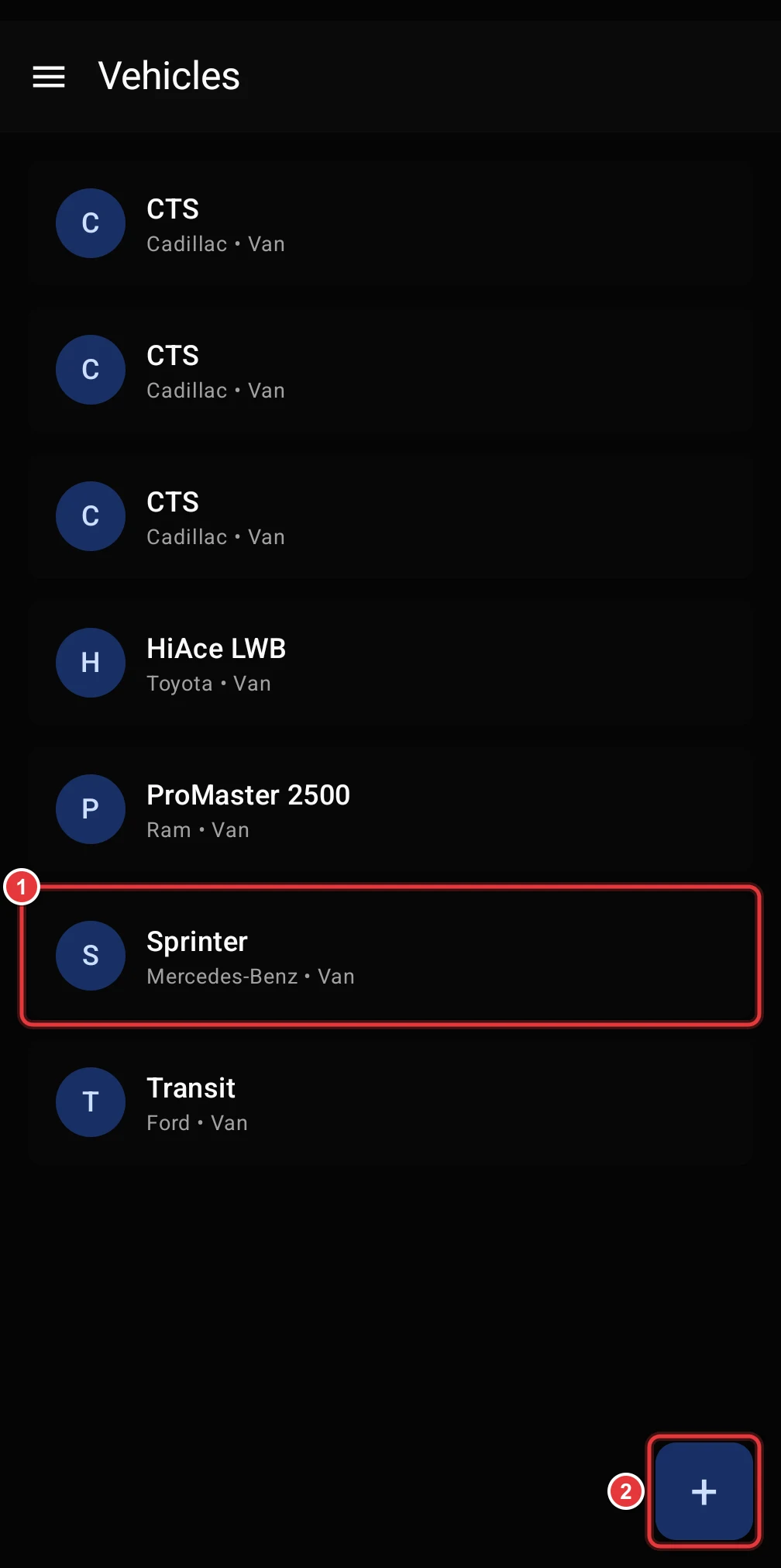
- Each row shows the model, the make and the vehicle type. Tap a row to open the vehicle.
- Tap + to add a vehicle.
See a vehicle and its maintenance
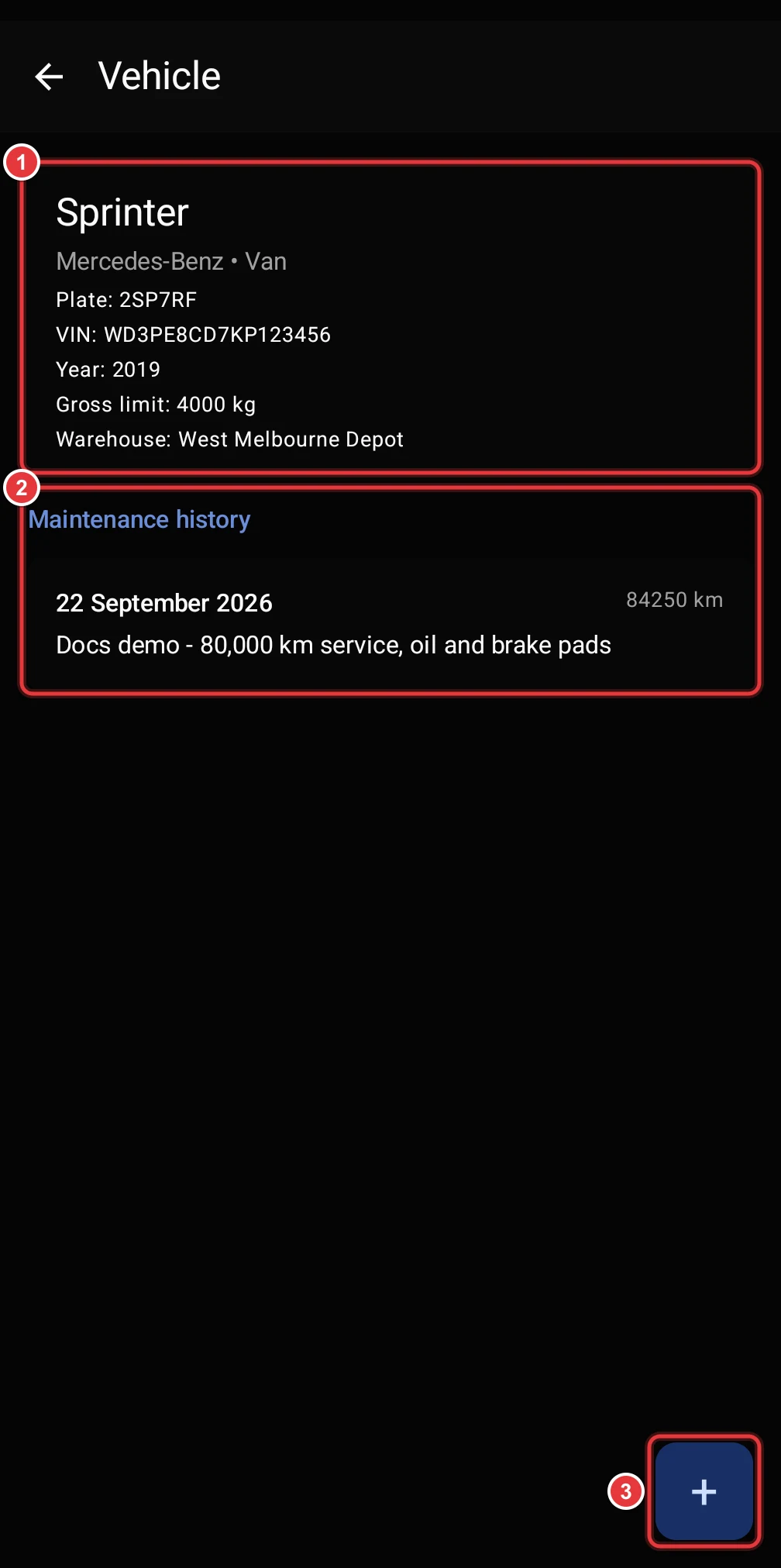
- Details. The plate, the VIN, the year, the gross weight limit and the home warehouse.
- Maintenance history. Each record shows the date, the odometer value and the description.
- Tap + to add a maintenance record.
Add a maintenance record
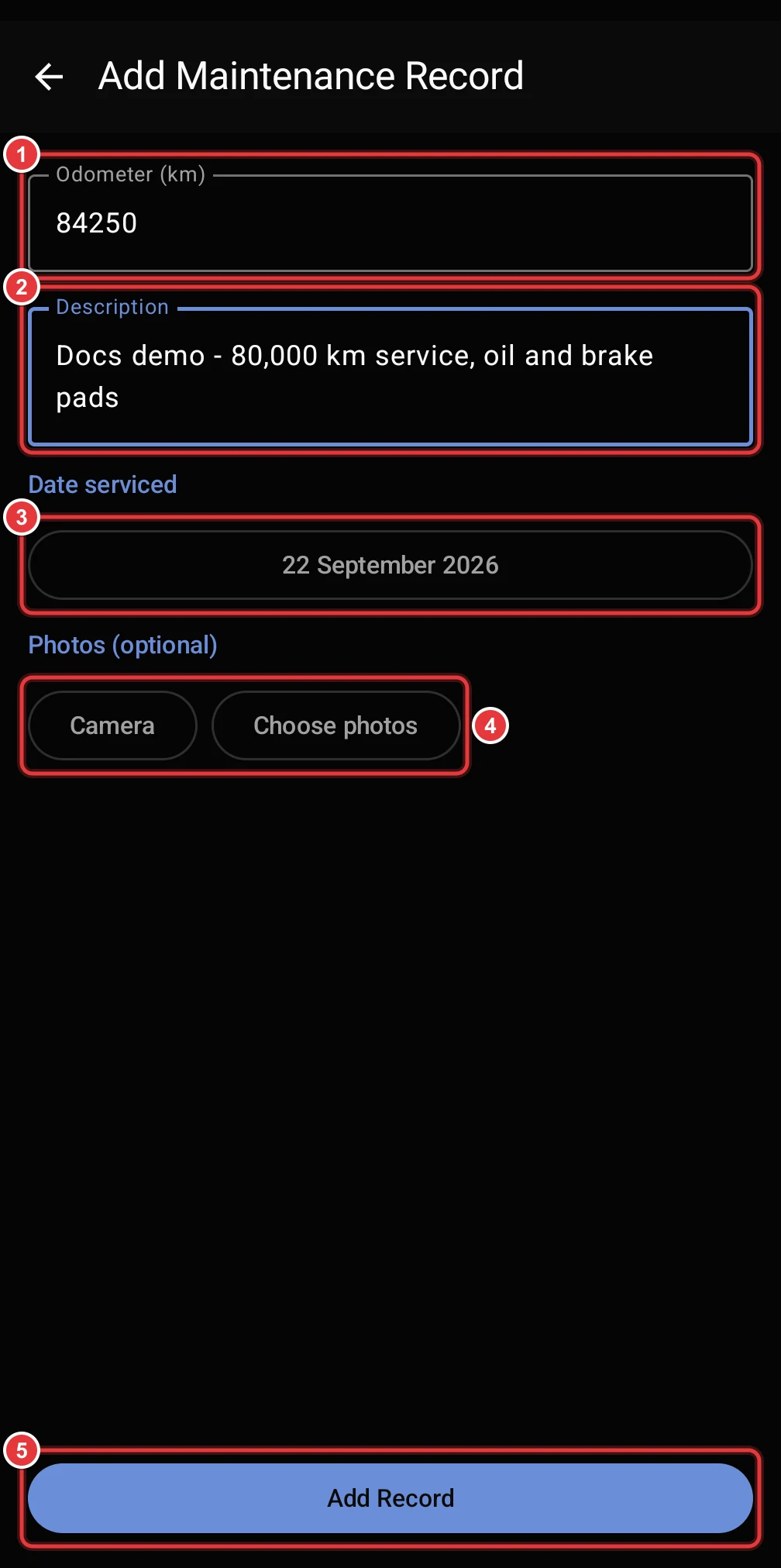
- Type the odometer value in km.
- Type a description of the work.
- Tap Select a date and select the date of the service.
- Optional: add photos, for example of the invoice.
- Tap Add Record.
Add a vehicle
You must have a warehouse before you can add a vehicle. If there is no warehouse, the app asks you to add one first.
On the Vehicles screen, tap +. The app asks how to add the VIN.
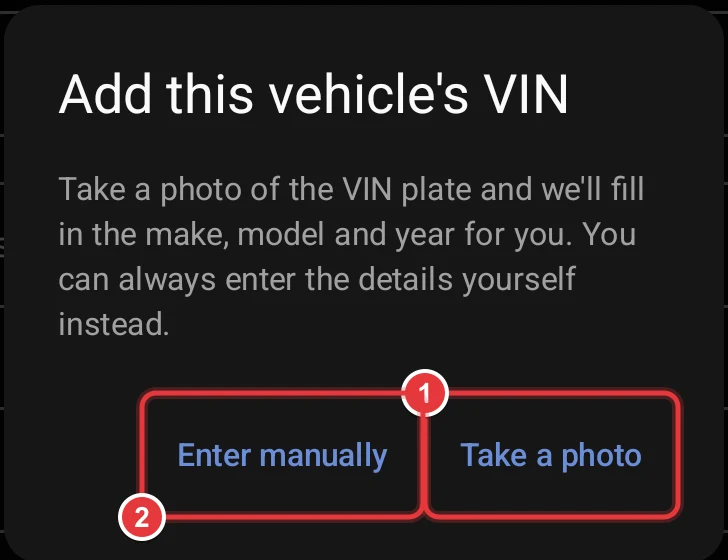
- Tap Take a photo to scan the VIN.
- Tap Enter manually to type the details. When you type the VIN, Hikyaku also finds the make, the model and the year.
Scan the VIN
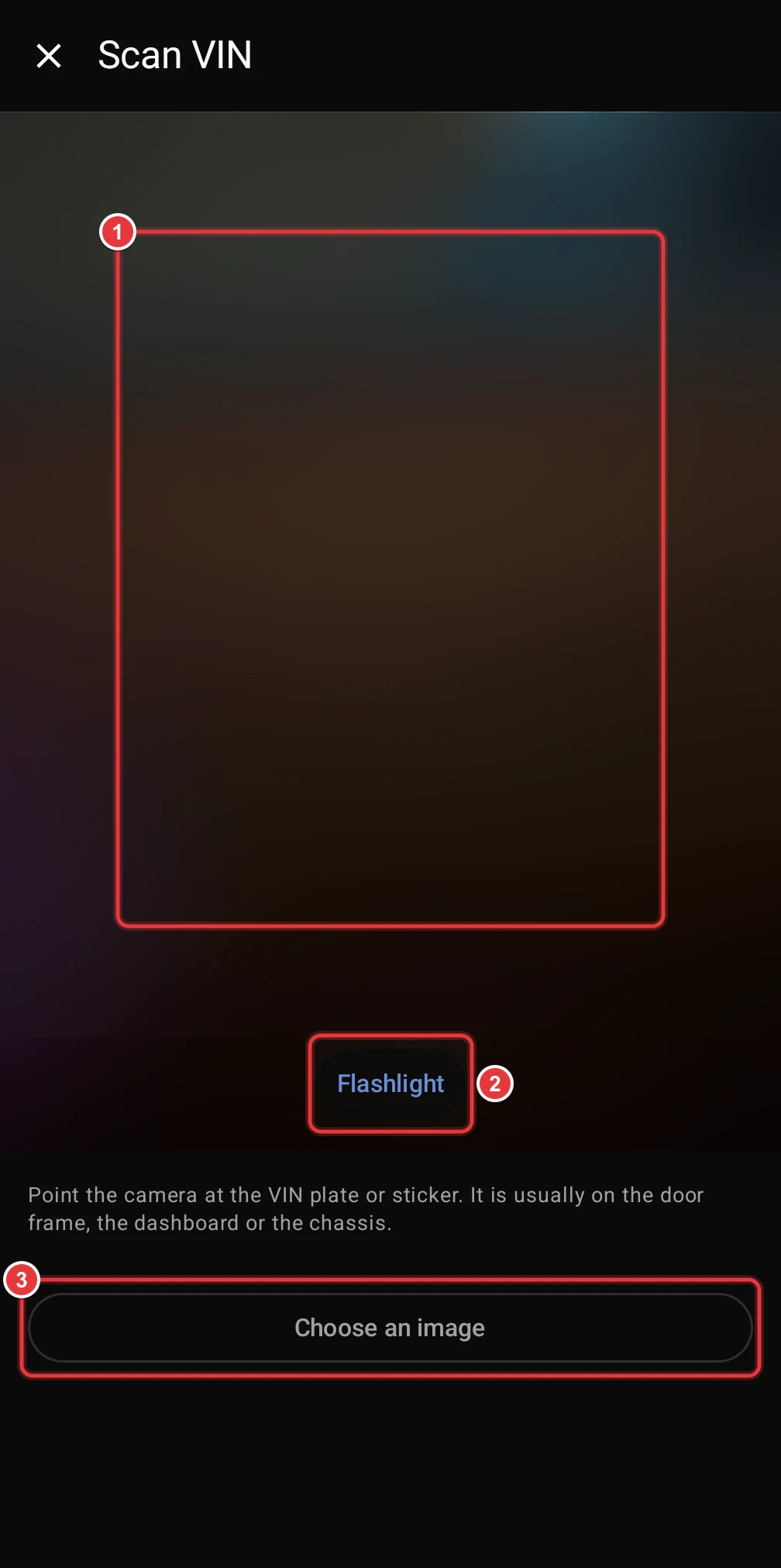
- Point the camera at the VIN plate or sticker. It is usually on the door frame, the dashboard or the chassis.
- In a dark area, tap Flashlight.
- To use a photo that you took before, tap Choose an image.
The phone reads the VIN on the device. When the normal text reader cannot read it, the on-device AI tries. In that case, the app tells you to compare the VIN with the label.
Complete the vehicle details
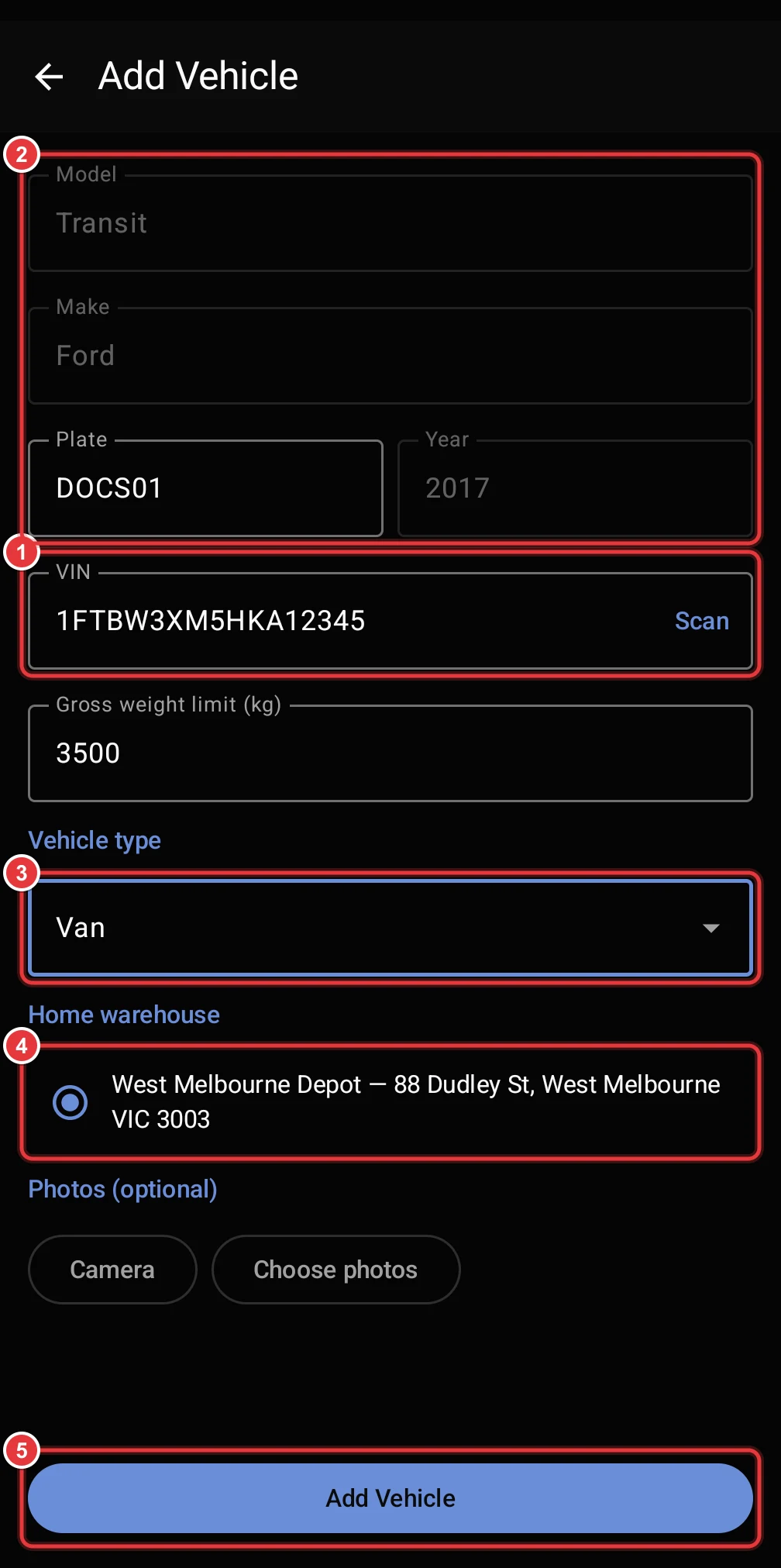
- VIN. The scanned VIN. You can also type it here. Tap Scan to scan it again.
- Details. Hikyaku finds the make, the model and the year from the VIN. Type the plate. Make sure that the details are correct.
- Select the Vehicle type, for example Van, Truck, Motorbike or Bicycle.
- Select the Home warehouse. Routes for this vehicle start and end here.
- Tap Add Vehicle.
Also type the Gross weight limit (kg). Hikyaku uses it to make sure that the vehicle does not carry too much. Optional: add photos of the vehicle.
If Hikyaku cannot find all the details for the VIN, the app tells you. Type the missing details.
Warehouses
In the navigation menu, tap Warehouses.
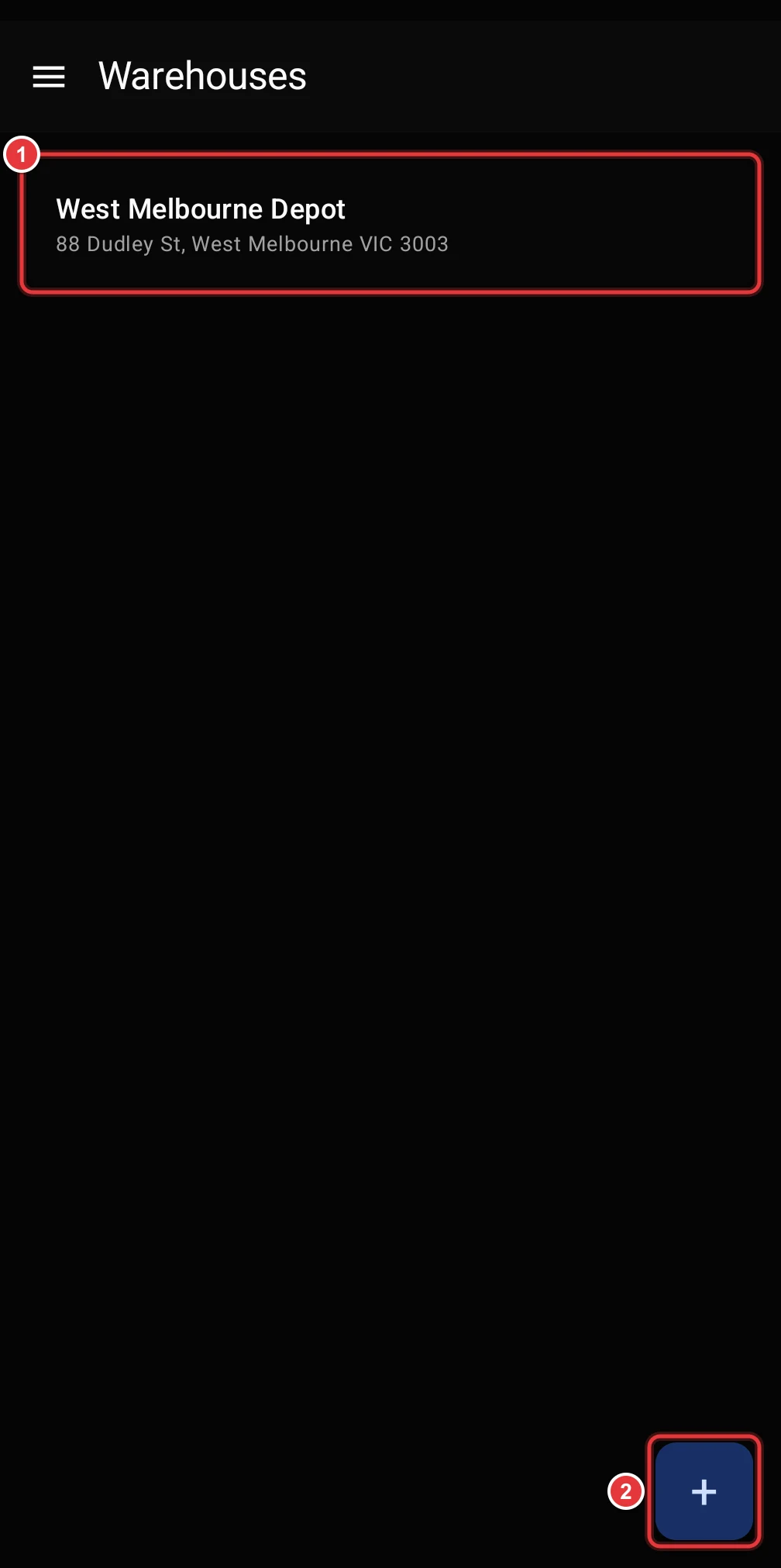
- Each row shows the name and the address of a warehouse.
- Tap + to add a warehouse.
Add a warehouse
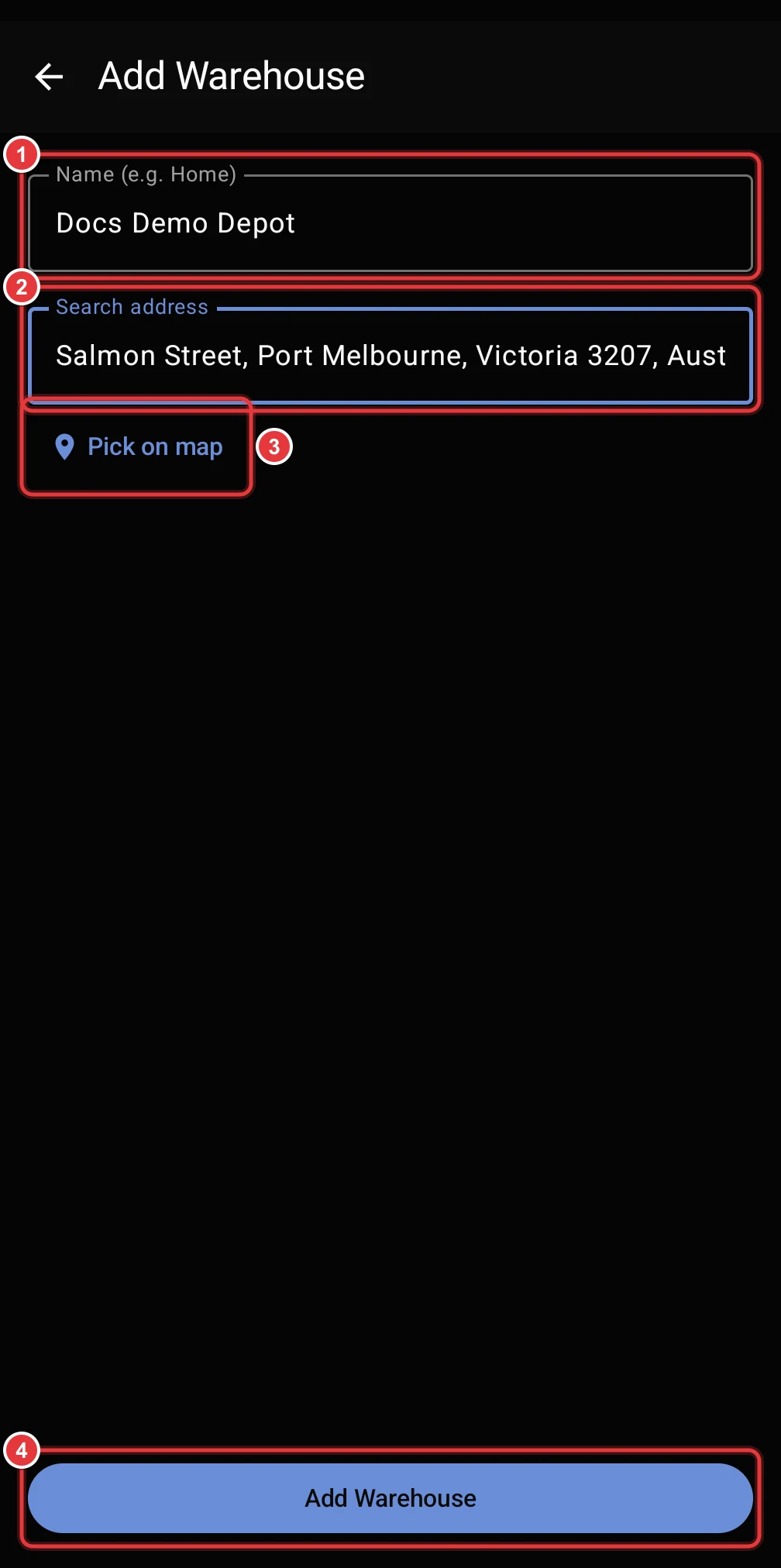
- Type a name for the warehouse.
- Type the address and select it from the list.
- If the list does not find the address, tap Pick on map. Refer to Pick a location on the map.
- Tap Add Warehouse.
A personal organisation can have one warehouse only.