Shifts and Routes
A shift is one driver, one vehicle and one route on one day. Hikyaku makes most shifts automatically. Refer to Dispatch and Operations. This page tells you how to read a shift in the app and how to change it before it starts.
To load the van and drive the route, refer to Run a Shift.
Open a shift
On the Home screen, tap a shift card.
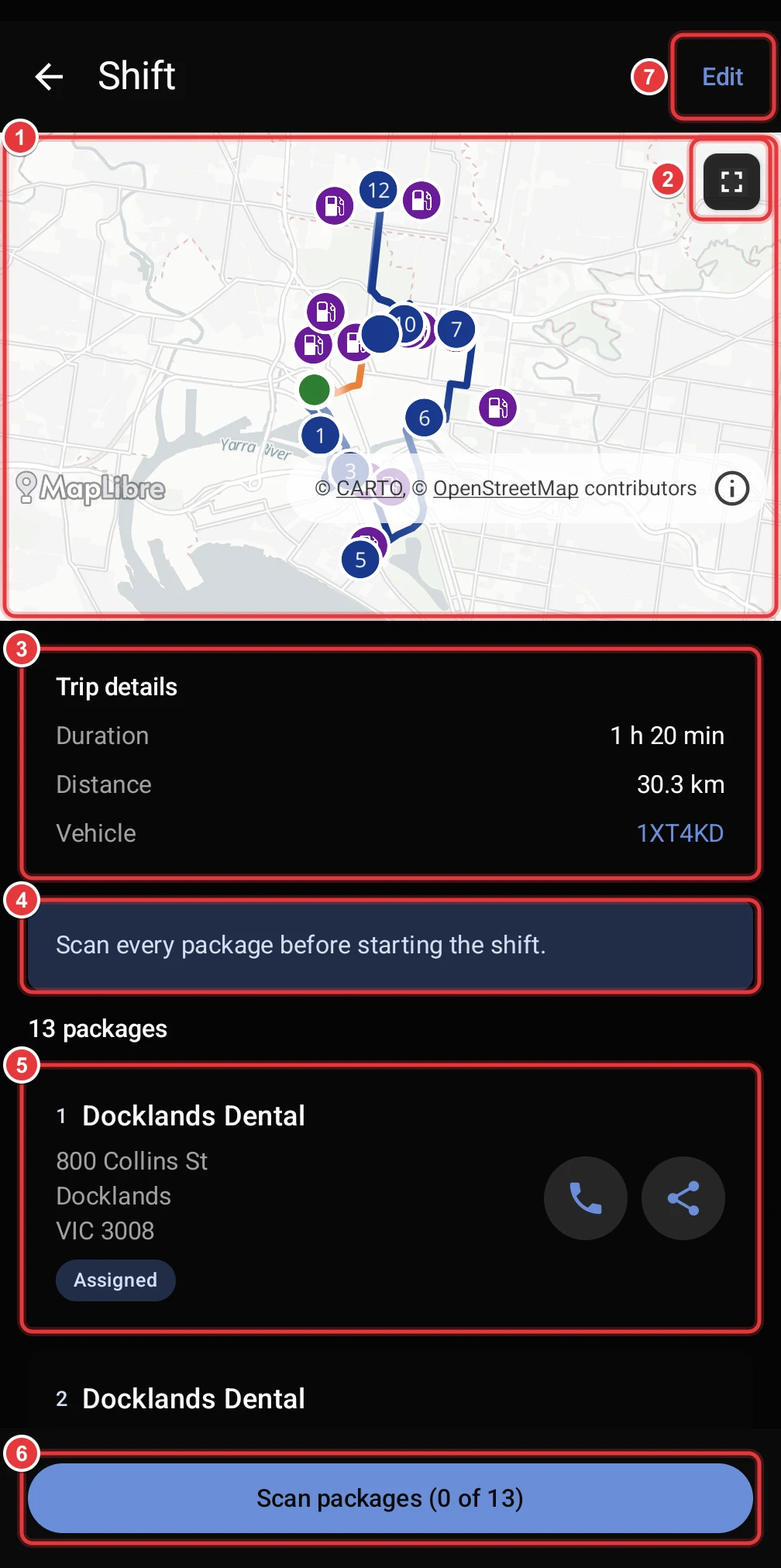
- Route map. The green dot is the warehouse. Each numbered dot is a stop, in the sequence of the route. The blue line is the route to the stops. The orange line is the return trip to the warehouse. Purple icons are fuel stations near the route.
- Full screen. Tap it to open a large map that you can move and zoom.
- Trip details. The estimated duration, the distance and the vehicle. Tap the plate number to open the vehicle.
- Banner. It tells you what to do next. Before the shift starts, you must scan each package.
- Stop card. Each card shows the stop number, the receiver, the address and the package status. Tap the card to open the package. Tap the phone icon to call the receiver. Tap the share icon to send a tracking link.
- Scan packages. It shows how many packages you scanned. Refer to Load the van.
- Edit. Tap it to change the start time or the stops. Edit shows only before the shift starts.
If a shift has more than one route, the screen shows a route selector above the map.
Use the full-screen map
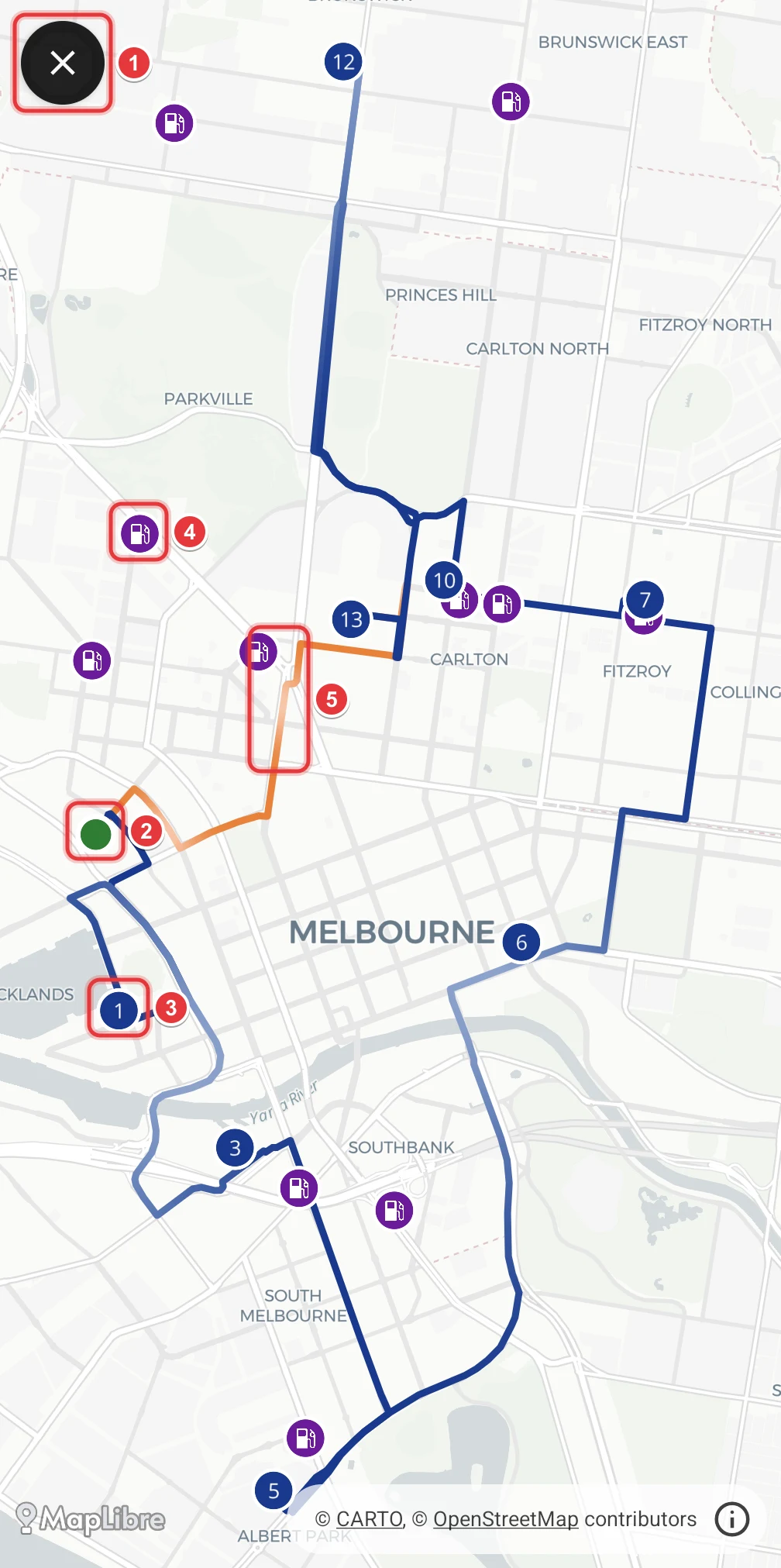
- Tap X to go back to the shift.
- The green dot is the warehouse. The route starts and ends here.
- The numbered dots are the stops.
- The purple icons are fuel stations.
- The orange line is the return trip to the warehouse.
Tap a fuel station to see its name and address.
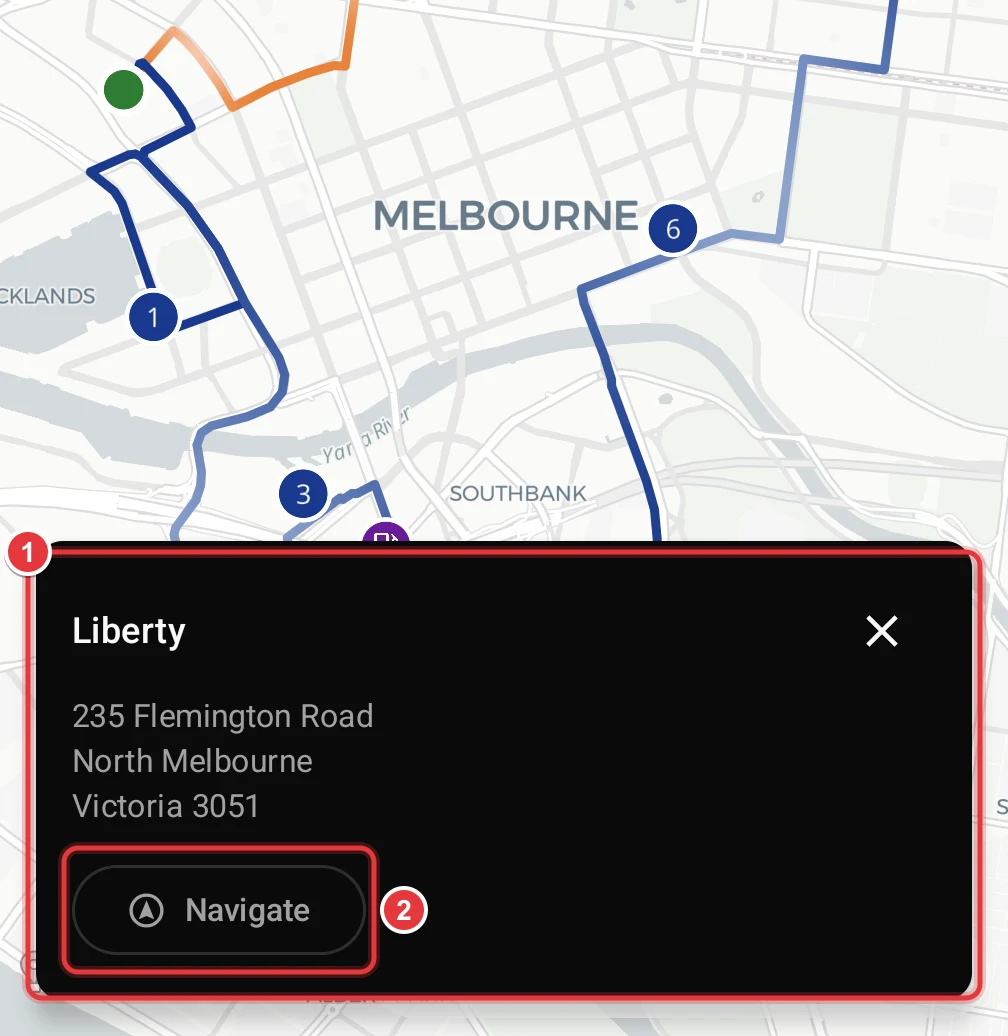
- The card shows the name and the address of the fuel station.
- Tap Navigate to open your navigation app with a route to the fuel station.
Change a shift before it starts
You can change a shift only before you start it. After the shift starts, a dispatcher can change it on the dashboard. Refer to Driver Shifts.
On the Shift screen, tap Edit. The screen changes to edit mode.
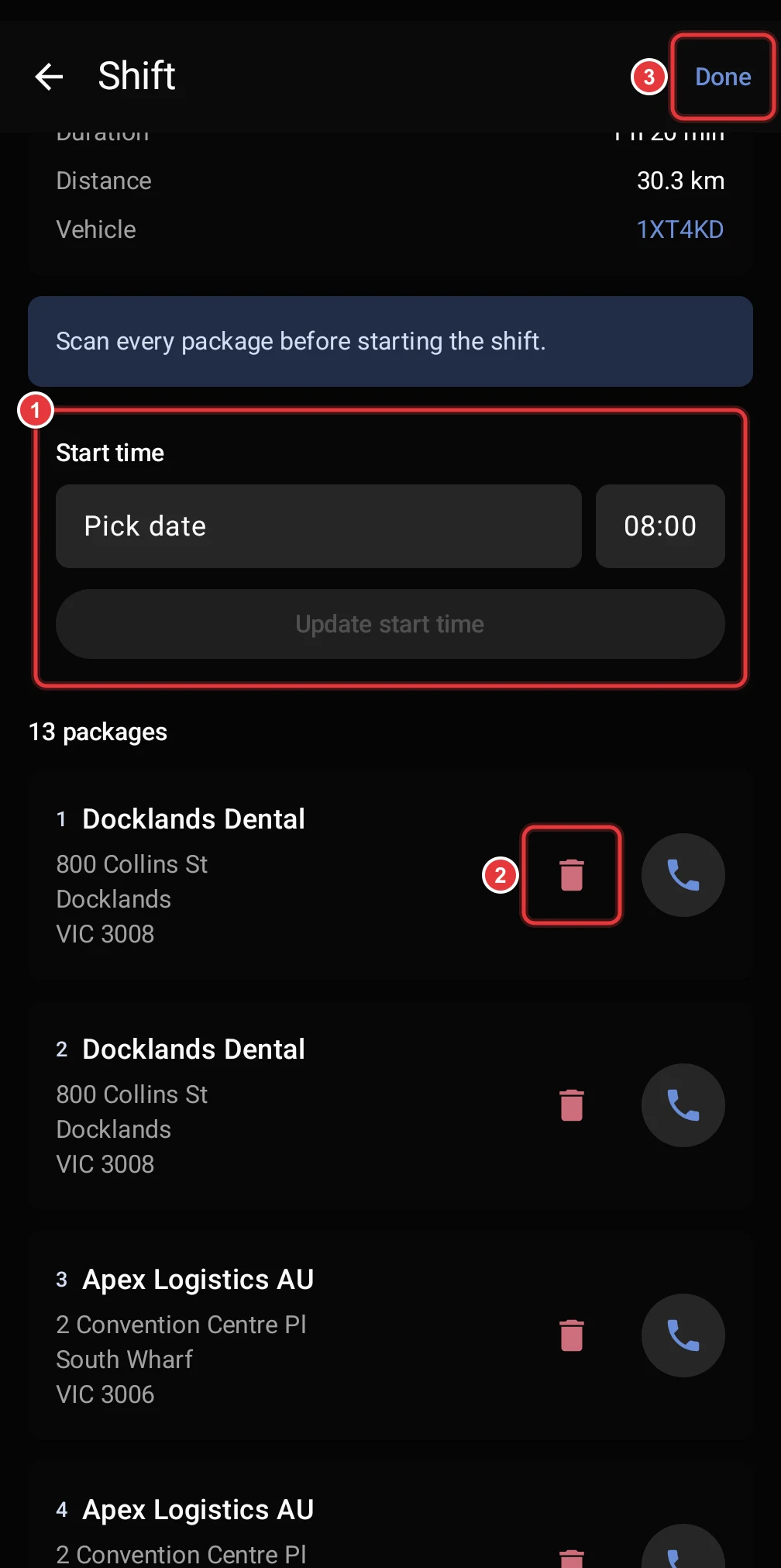
- To change the start time, set the date and the time in Start time. Then tap Update start time.
- To remove a stop, tap the red bin icon on the stop card.
- When you finish, tap Done.
To add a stop, go to the end of the list and tap Add stop.
A lock icon shows on a stop that you cannot remove. The package of that stop is already in the van.
Remove a stop
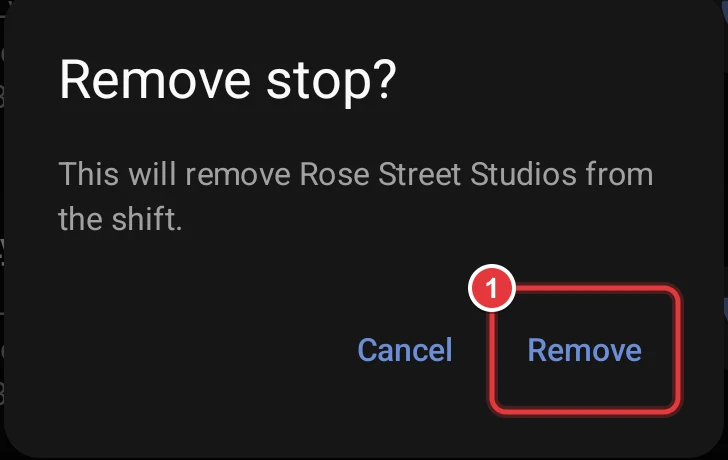
- Read the name of the receiver in the dialog.
- Tap Remove. To keep the stop, tap Cancel.
The stop goes off the route. The app gives the next stops new numbers.
Add a stop
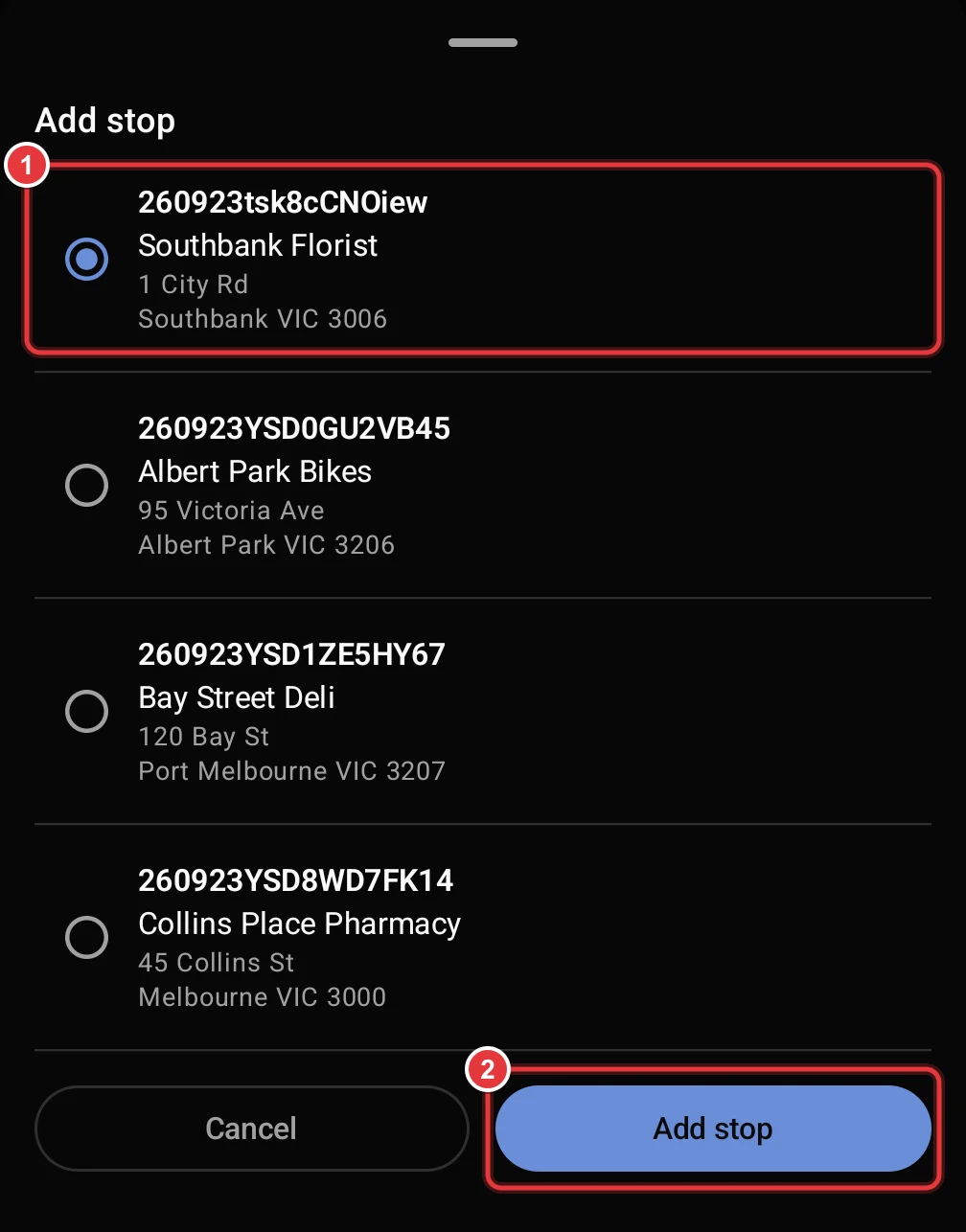
- Select a package. The list shows packages that are not on a shift. Each row shows the tracking number, the receiver and the address.
- Tap Add stop.
The app adds the stop as the last stop before the return trip. It does not change the sequence of the other stops. If the list is empty, add a package first. Refer to Add a package.
When the plan changes during a shift
A dispatcher or instant assignment can change a shift while you drive. The app then shows a message at the bottom of the screen, for example "2 package(s) added to your shift". Tap Reload to see the new route. The app does not change your current stop.