Packages
Use the Packages screen to see all packages of your organisation and to add a new package from the road. Hikyaku puts a new package on a shift immediately. Refer to Dispatch and Operations.
See the packages
In the navigation menu, tap Packages.
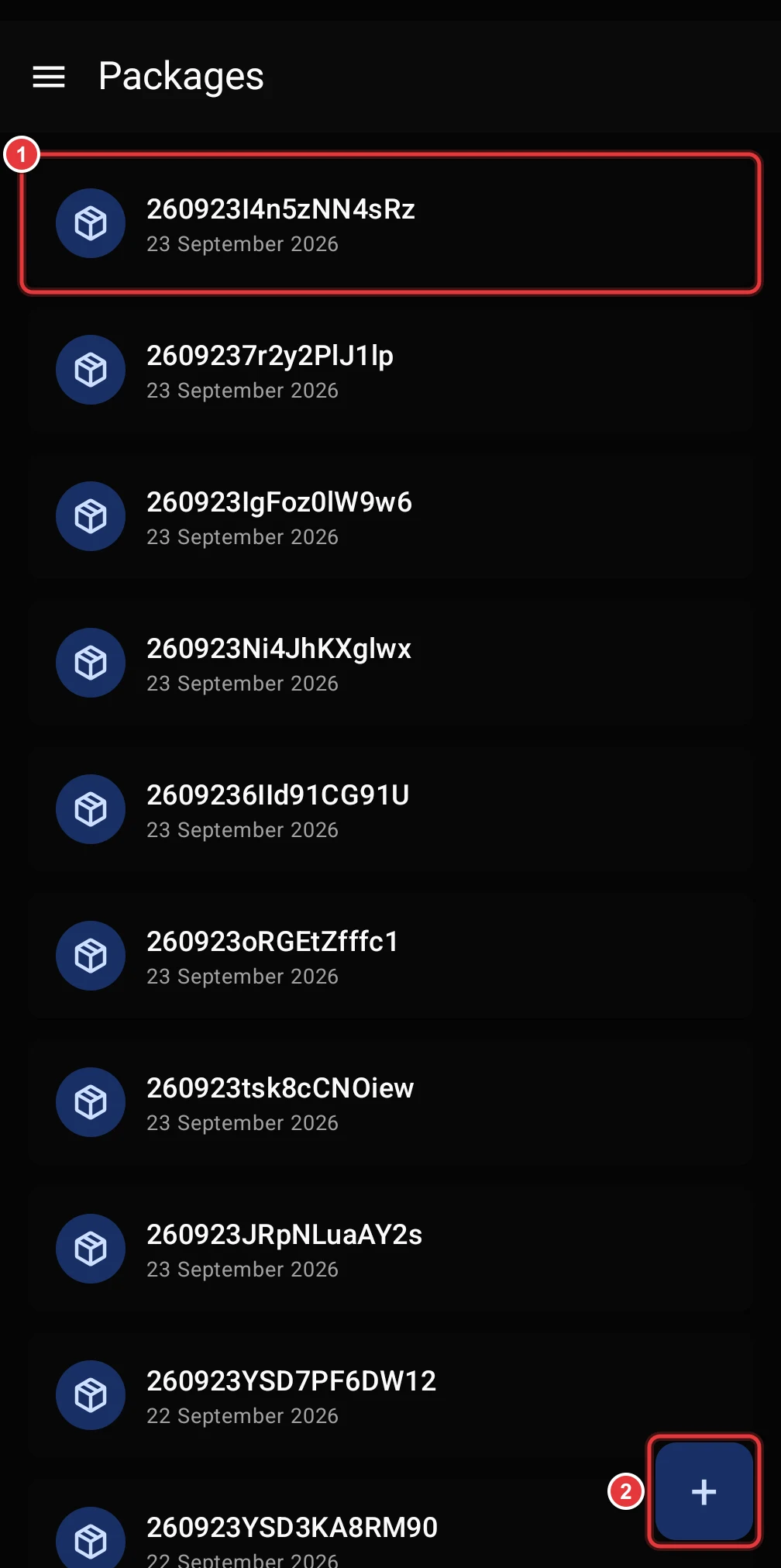
- Each row shows the tracking number and the date that the package was made. Tap a row to open the package.
- Tap + to add a package.
The newest packages show first. Scroll down to load more. Swipe down to load the list again.
Open a package
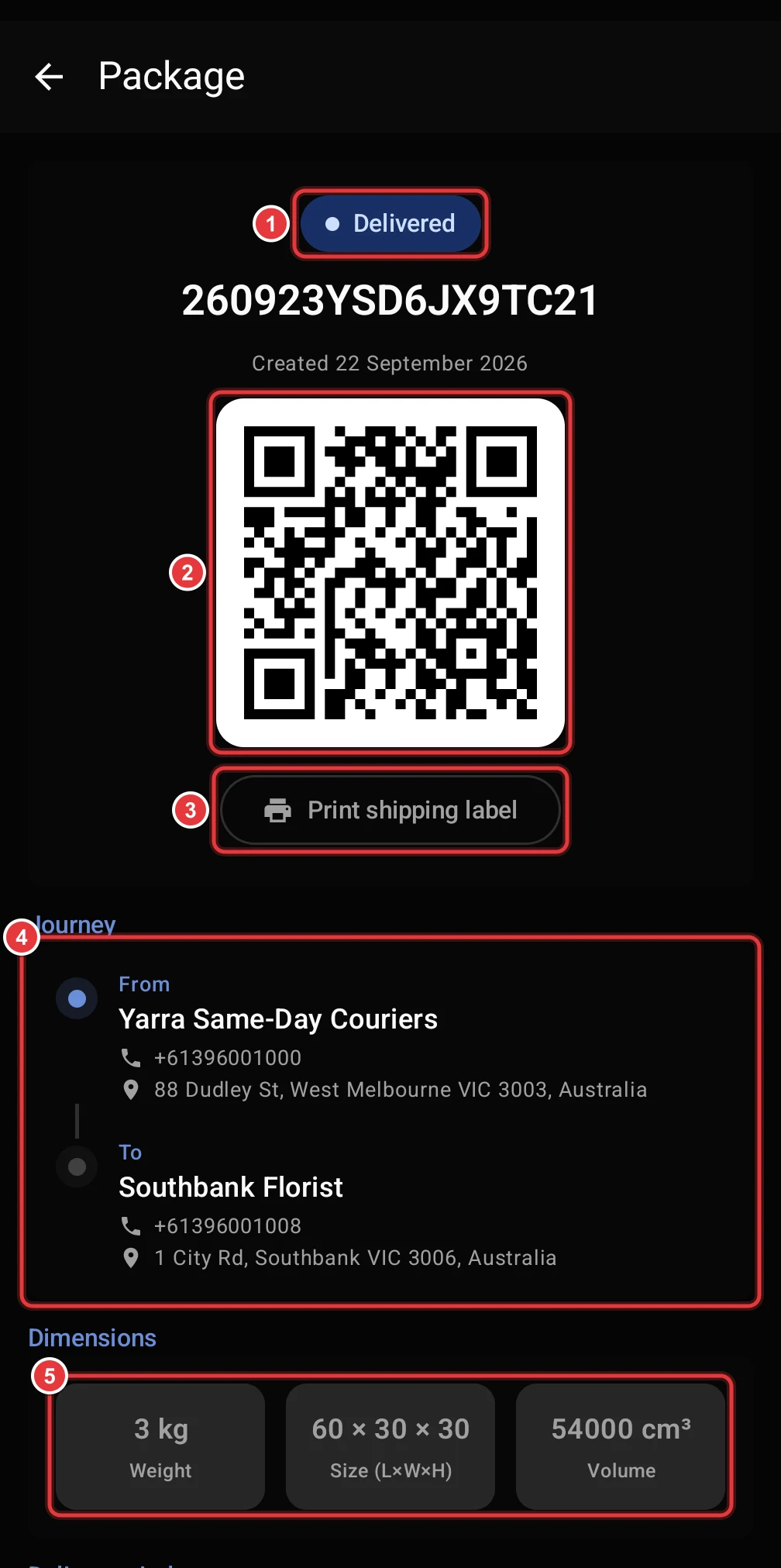
- Status. The current status of the package.
- QR code. The code that the driver scans into the van. When your organisation has a logo, the logo shows in the centre of the code.
- Print shipping label. Tap it to print the label from the phone.
- Journey. The sender and the receiver, with their phone numbers and addresses.
- Dimensions. The weight, the size and the volume.
Scroll down to see more.
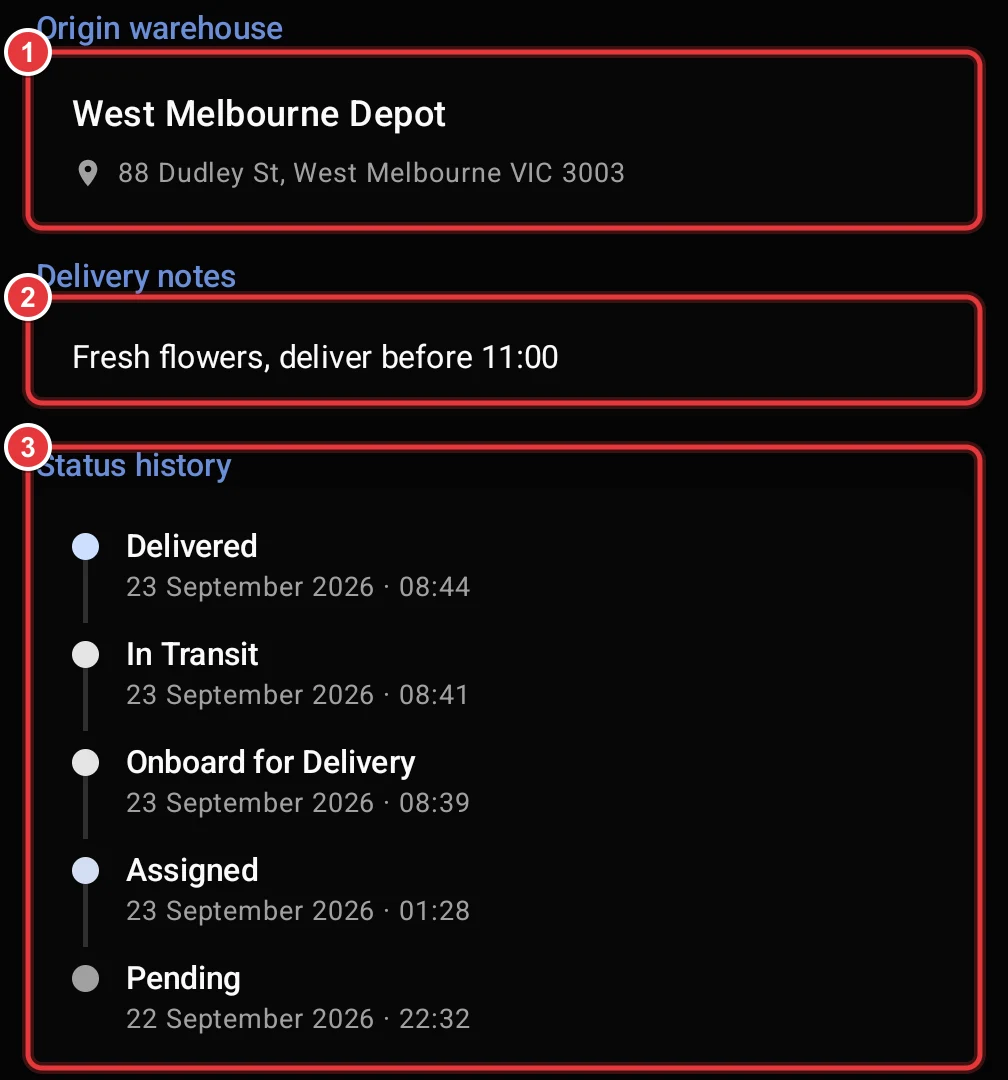
- Origin warehouse. The warehouse where the route starts.
- Delivery notes. The instructions for the driver.
- Status history. Each status change, with the date and the time. The newest change is at the top.
The Delivery window card shows the scheduled and actual departure and arrival times. Proof of delivery shows the photo and the signature after the delivery.
In a personal organisation, you can delete a package that is Pending or Assigned. Tap the delete icon at the top of the screen. You cannot undo this.
Add a package
To add a package, do four steps: Package, Sender, Receiver and Delivery. The indicator at the top shows the current step. Tap Back to go to the previous step.
Step 1: Package
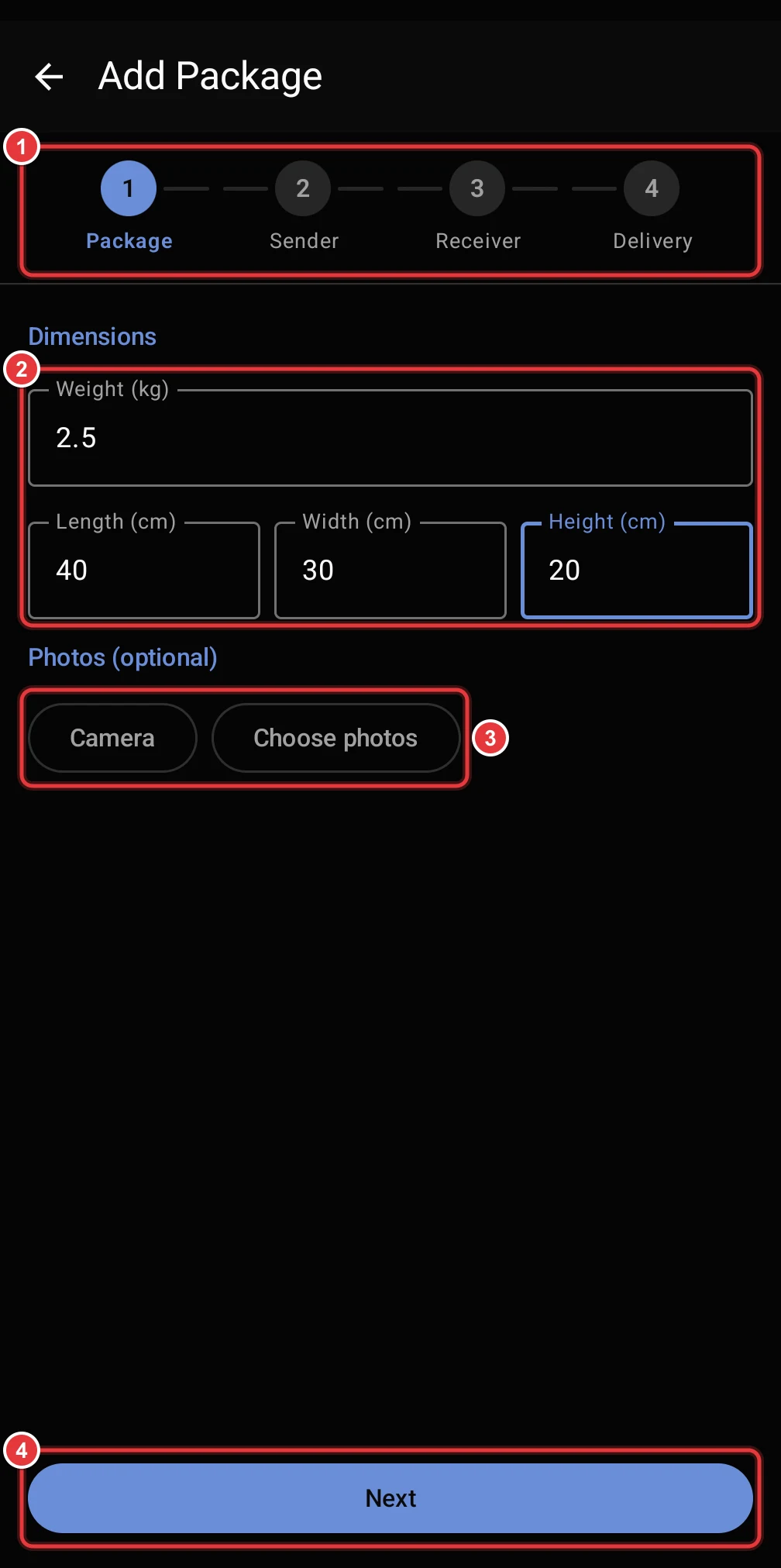
- The step indicator shows that you are on Package.
- Type the weight in kg, and the length, width and height in cm.
- Optional: tap Camera or Choose photos to add photos of the package.
- Tap Next.
Step 2: Sender
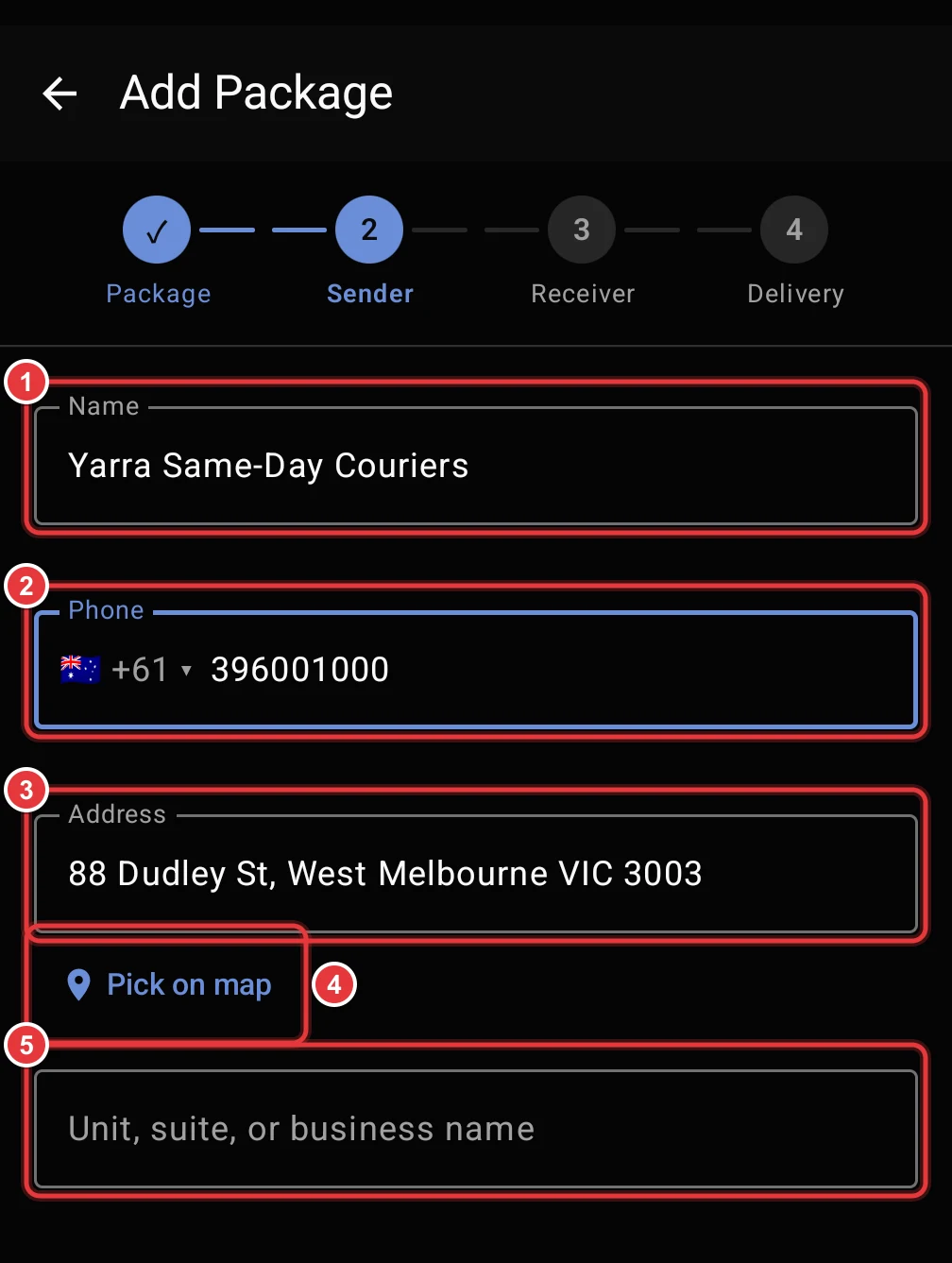
- Type the name of the sender. When the name matches a saved customer, the app shows it below the field. Tap it to fill in the phone and the address.
- Tap the flag to select the country code. Then type the phone number.
- Type the address and select it from the list.
- If the list does not find the address, tap Pick on map.
- Optional: type a unit, a suite or a business name.
Then tap Next.
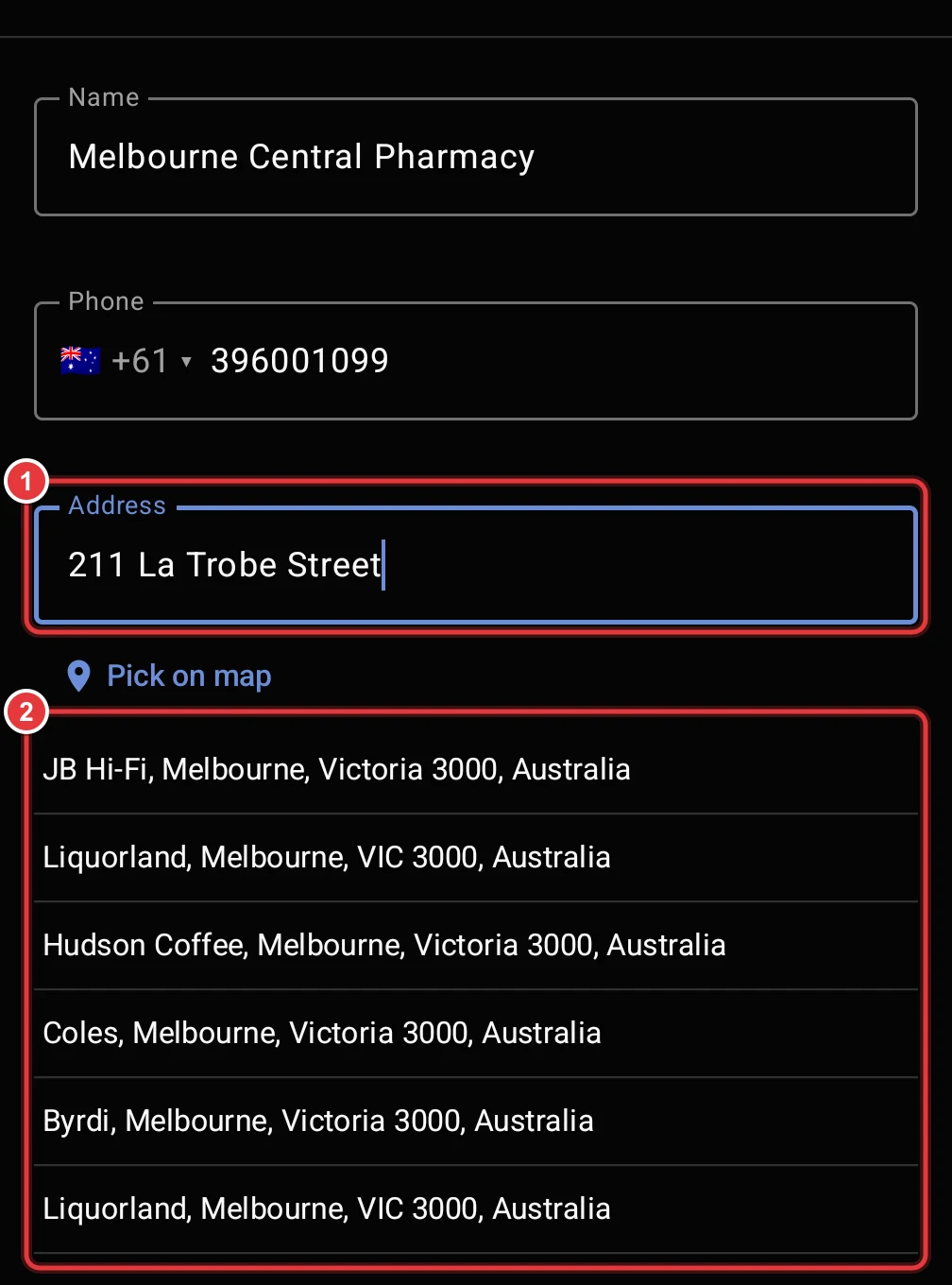
- Type part of the address.
- Select the correct result. The list can show businesses and street addresses.
Pick a location on the map
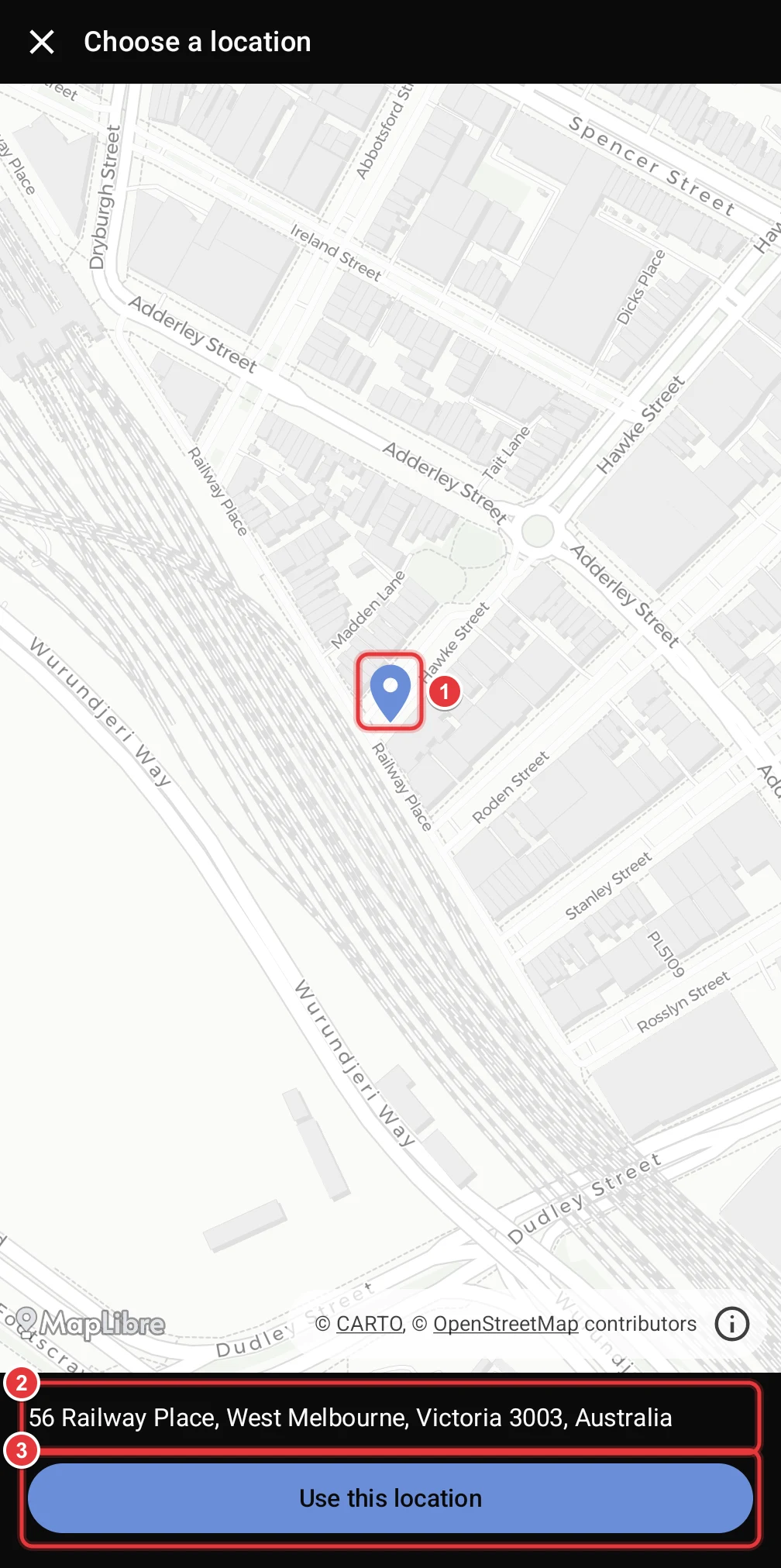
- Move the map until the pin is on the correct building.
- Make sure that the address below the map is correct.
- Tap Use this location.
Step 3: Receiver
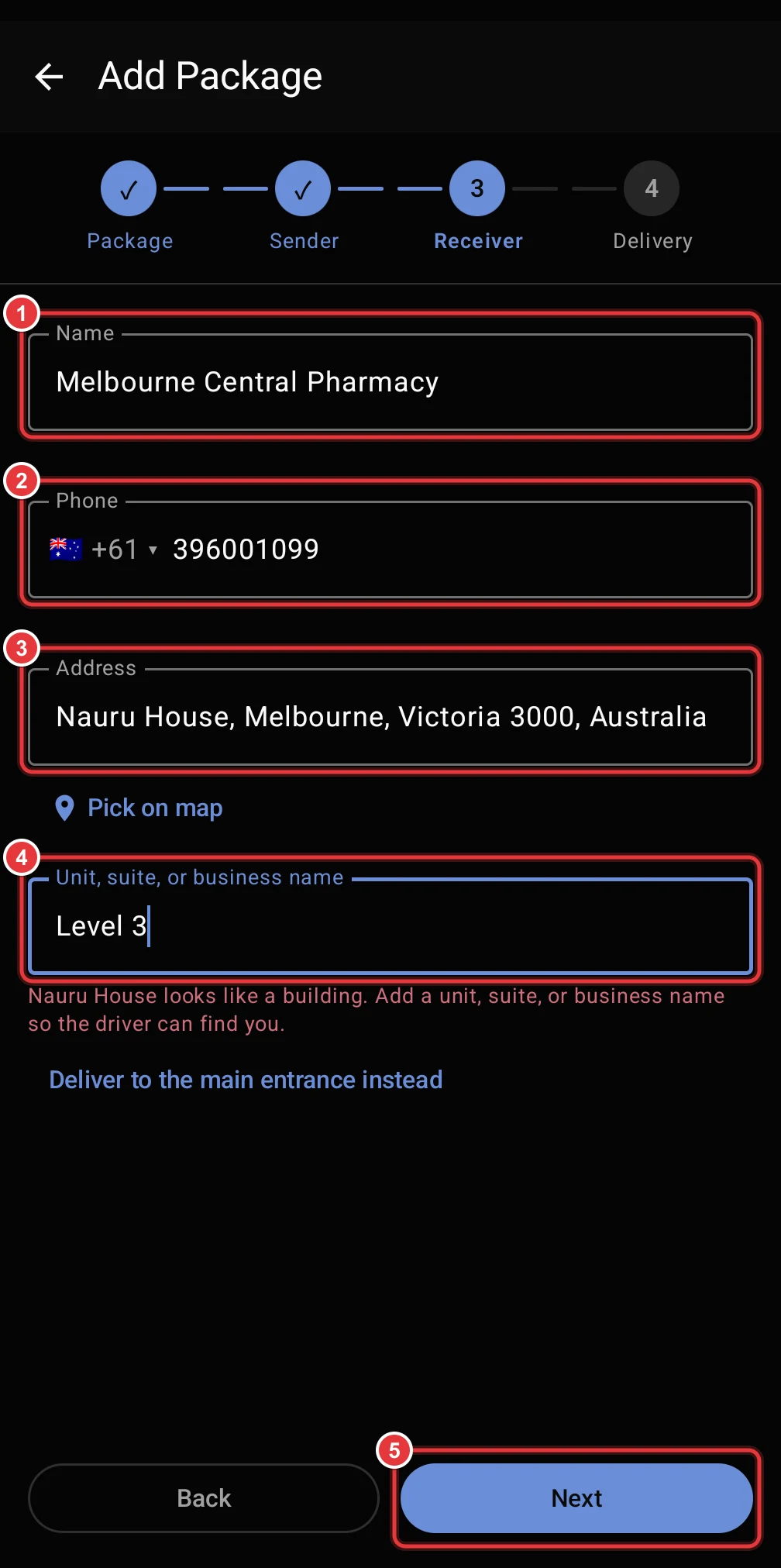
- Type the name of the receiver.
- Select the country code and type the phone number.
- Type the address and select it from the list.
- Type the unit, the suite or the business name.
- Tap Next.
When the address is a large building, the app asks for more information. This helps the driver to find the receiver.
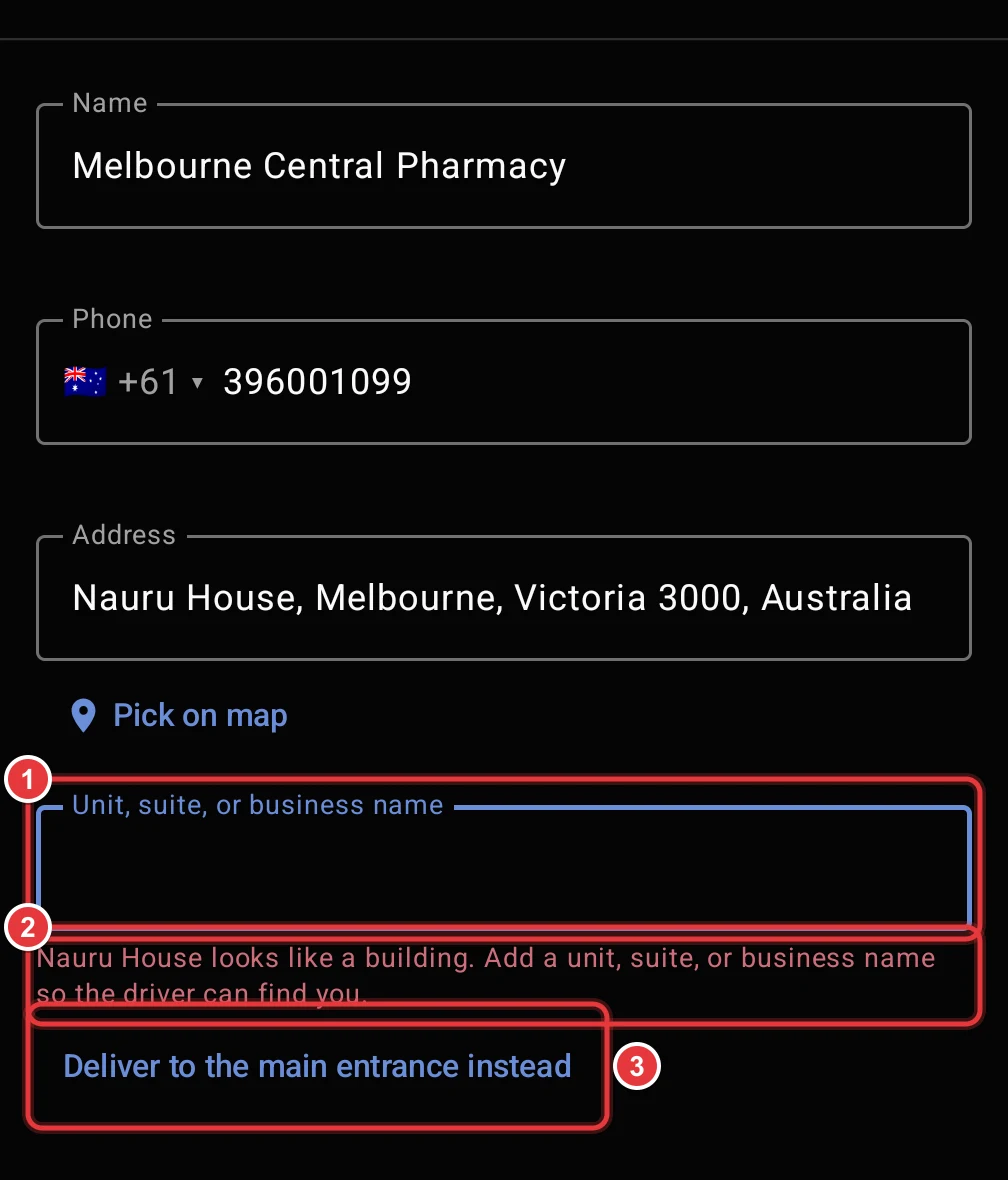
- Type the unit, the suite or the business name.
- The warning tells you that the address looks like a building.
- If there is no unit, tap Deliver to the main entrance instead.
You cannot go to the next step until you do one of these two actions.
Step 4: Delivery
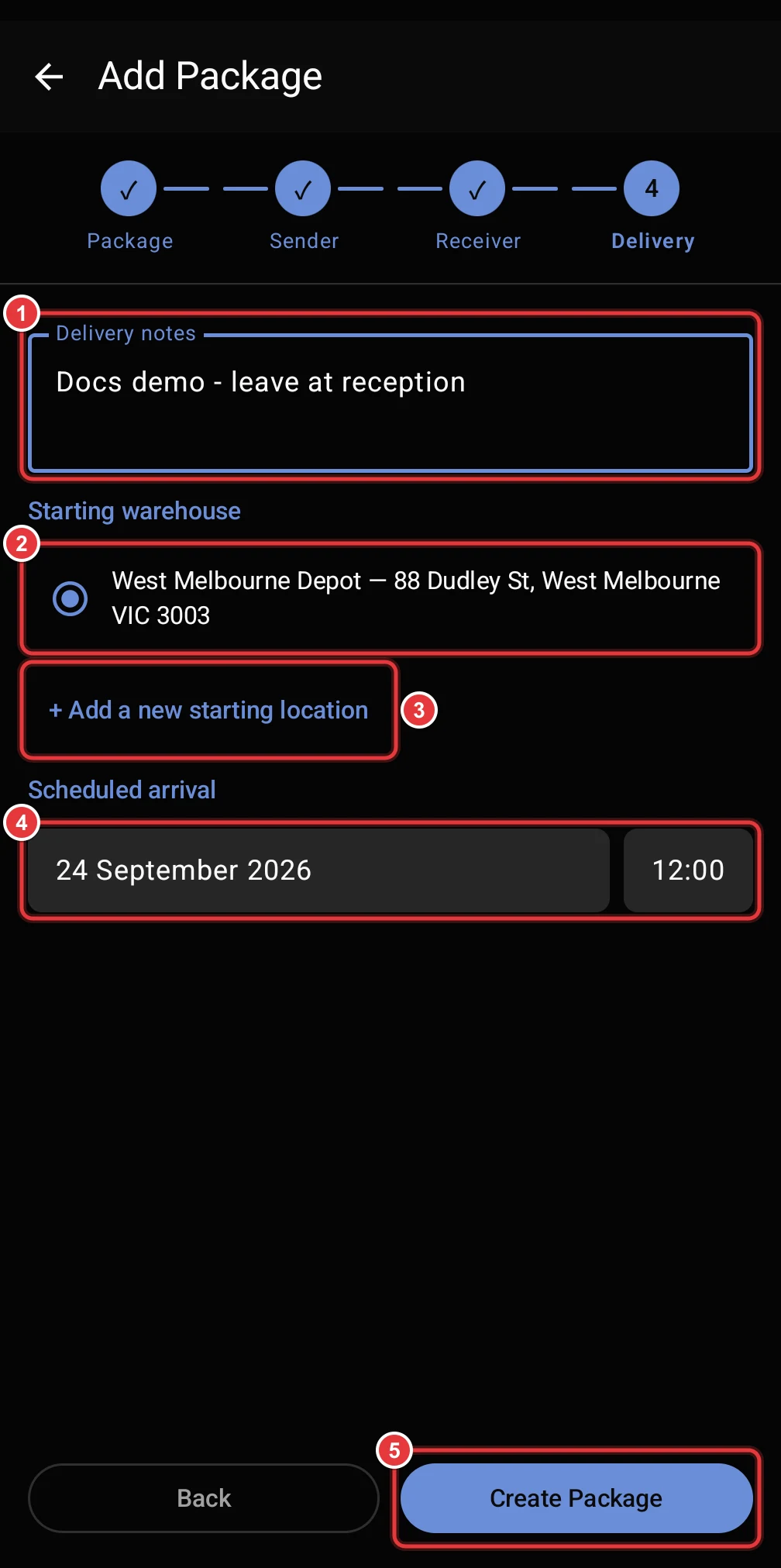
- Optional: type instructions for the driver in Delivery notes.
- Select the Starting warehouse.
- To use a new warehouse, tap + Add a new starting location. Type a name and search for the address.
- Set the date and the time of the Scheduled arrival. This is the latest time for the delivery.
- Tap Create Package.
See where the package went
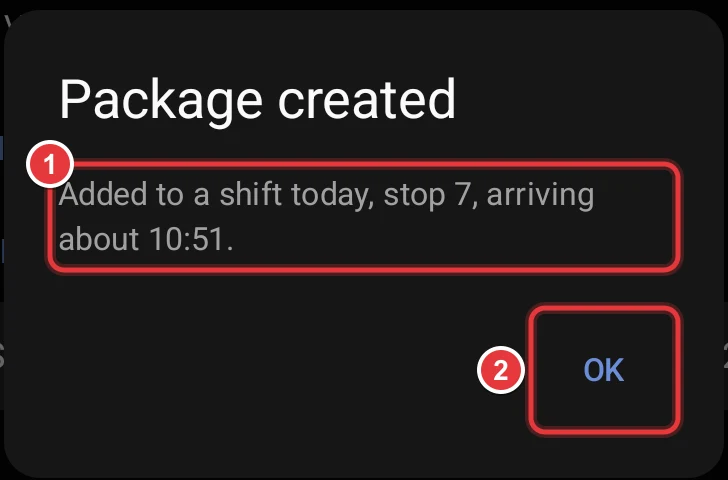
- Read the result. It tells you what Hikyaku did with the package.
- Tap OK.
| Result | What it means |
|---|---|
| Added to a shift today, stop n | Hikyaku put the package on an open shift. The text can also show the estimated arrival time. |
| A new shift was opened for it | Hikyaku made a new shift for a free driver and vehicle. |
| Queued. It isn't on a shift yet. | No shift can take the package now. Hikyaku adds it when a shift has space. |
| Not added to a shift | Hikyaku did not add the package. The text gives the reason, for example: today's shifts are full, no driver and vehicle are free, the shift allowance is used, or the address is not on the map. |
If Hikyaku moved other packages to make space, the dialog also tells you how many.