Vehicles and Skills
A vehicle record tells Hikyaku what a van can carry and where it starts each day. A skill is a label for a capability, for example Refrigerated or Tail lift. The planner uses skills to match packages to vehicles.
Who can use this page: team members with vehicles.view. To add or change a vehicle, you must have vehicles.add or vehicles.update. Refer to Access Control.
Open the vehicle list
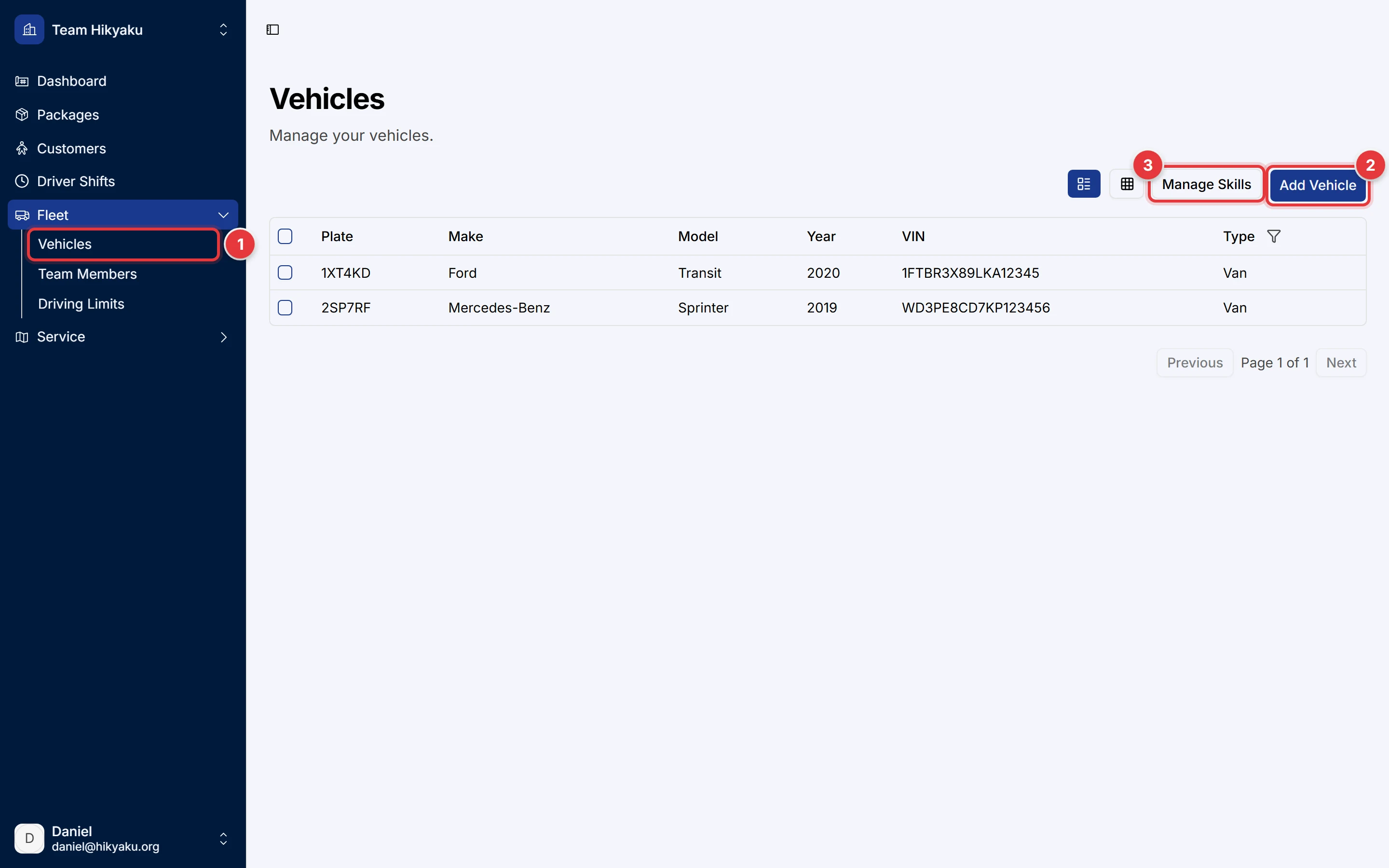
- In the sidebar, click Fleet, then click Vehicles.
- Click Add Vehicle to make a new vehicle record.
- Click Manage Skills to rename or archive skills.
The list shows the plate, make, model, year, VIN and type of each vehicle. Use the two buttons to the left of Manage Skills to change between the table view and the card view. Use the filter icon in the Type column to show only one vehicle type.
Add a vehicle
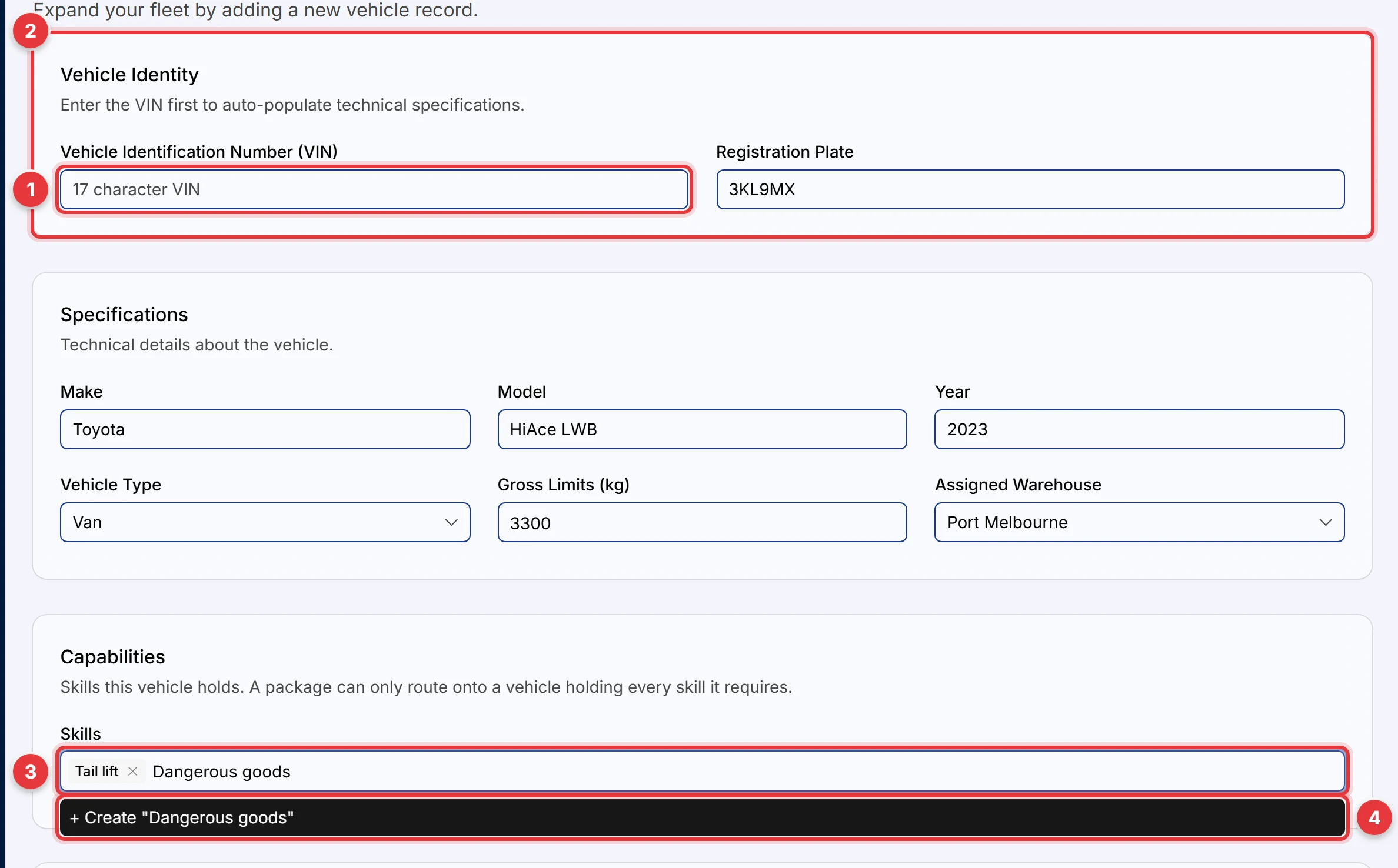
- Type the 17-character Vehicle Identification Number (VIN). Hikyaku reads the VIN and fills in the make, model, year and gross limit.
- Make sure that the values in Specifications are correct. Select the Vehicle Type and the Assigned Warehouse. The vehicle starts and ends each shift at this warehouse.
- In Skills, select each skill that this vehicle has.
- To add a skill that does not exist yet, type its name and click + Create "name".
- Optional: add up to five photos in Vehicle Images. Each photo must be 5 MB or less.
- Click Save Vehicle.
If the VIN is not correct, or if Hikyaku cannot read it, type the make, model and year yourself. The form does not save a VIN that has fewer or more than 17 characters.
Gross Limits (kg) is the maximum load of the vehicle. The planner does not put more weight on a shift than this value.
How skills control the plan
A package can require one or more skills. The planner puts a package only on a vehicle that has all the skills that the package requires.
| Package requires | Vehicle has | Result |
|---|---|---|
| No skills | Any skills | The planner can use this vehicle. |
Refrigerated | Refrigerated, Tail lift | The planner can use this vehicle. |
Refrigerated, Tail lift | Refrigerated | The planner cannot use this vehicle. |
If no vehicle at the warehouse has the necessary skills, the package stays Pending. The package page then shows the reason Unassigned: skill mismatch and the names of the missing skills. Refer to Packages.
Rename or archive a skill
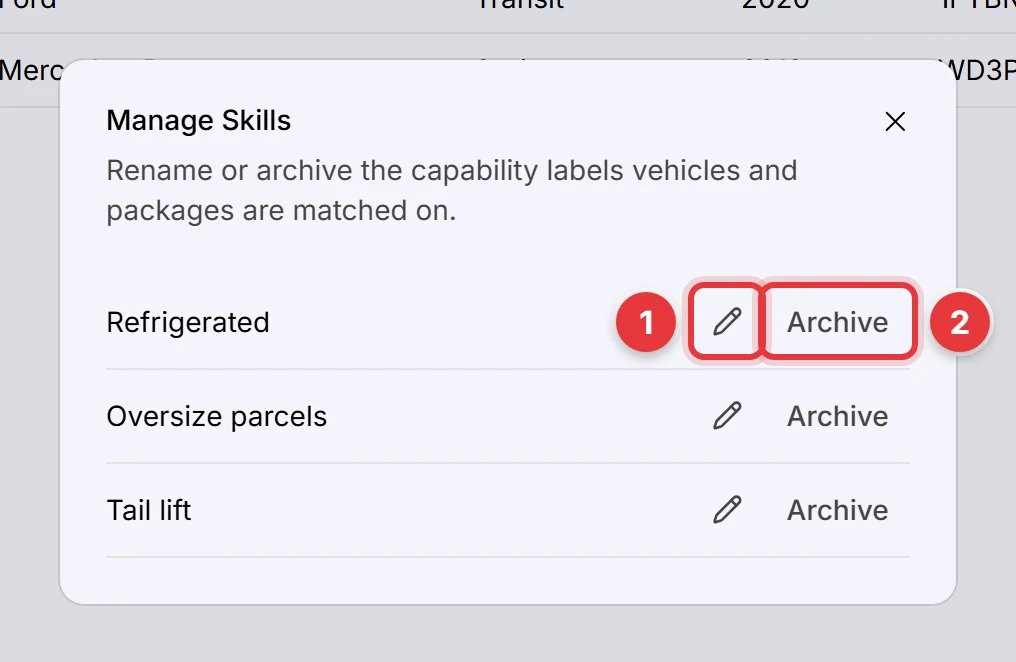
- On the Vehicles page, click Manage Skills.
- To rename a skill, click the pencil icon, type the new name and save it. All vehicles and packages that use the skill show the new name.
- To stop the use of a skill, click Archive and confirm. You cannot select an archived skill on a vehicle or a package.
You create skills only from the Skills field of a vehicle or a package. The Manage Skills dialog does not create skills.
See a vehicle
Click a row in the vehicle list to open the vehicle page. The vehicle page shows:
- Vehicle Information and Technical Specs: the make, model, year, type, VIN and gross limit.
- Vehicle Gallery: the photos of the vehicle.
- Assigned Driver: the driver who uses this vehicle now. Click Assign Now to pair a driver with the vehicle.
- Recent Deliveries: the packages that this vehicle carried or carries now.
- Maintenance Records: the service history of the vehicle.
Record maintenance
- On the vehicle page, click Add Record in Maintenance Records.
- Type the Date serviced, the Odometer value and a Description of servicing done.
- Save the record.
Delete a vehicle
Click Delete on the vehicle page. Hikyaku keeps the history of a deleted vehicle, but the vehicle does not show in lists or in the planner.
You cannot delete a vehicle when one of these conditions is true:
- A driver is paired with the vehicle.
- The vehicle has a shift that did not start yet.
- The vehicle has a shift that is in progress.
Remove the driver pairing, or wait until the shift is complete. Then delete the vehicle again.